TISSL is an all-in-one digital POS solution that offers real-time analytics and is designed for hospitality businesses. It facilitates fast, seamless order taking and processing with built-in payment systems. These capabilities helps restaurants, hotels, pubs, and other hospitality business run their operations better. When you connect your GonnaOrder store with TISSL, you can enjoy the benefits of both platforms in managing your orders. This integration supports both order submission to your POS, catalog synchronization, and standalone/ pay later features.
| Website | https://tissl.co.uk |
| Company Logo |  |
On This Page
- How to Connect Your Store With TISSL POS
- View Incoming Orders on Your POS
- View Orders Paid Via the Standalone Payment Mode
- Synchronize Your Catalog with TISSL
- Disable/Disconnect TISSL POS From Your Store
How to Connect Your Store With TISSL
Here are the steps to follow to integrate your GonnaOrder store with TISSL.
- Go to your store Settings > Integrations and find the TISSL connection section from the supported integrations.
- Click Connect to get started with the connection process.
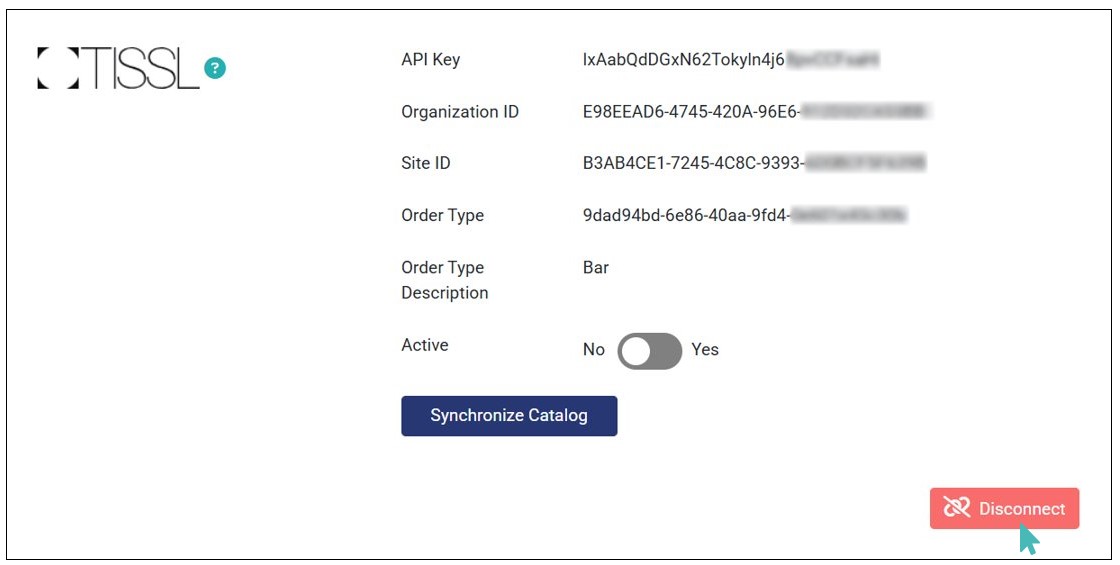
- Enter the required integration details and click Connect. Here, you need to accurately input the following details:
- API Key
- Organization ID
- Site ID
- Order Type
- Order Type Description
To get these these integration details, contact TISSL support.
- Upon clicking Connect, the integration is successful. Therefore, all incoming online orders from your GonnaOrder store are sent to your POS.



View Incoming Orders on Your POS
Once you connect your store with TISSL, all incoming table, pickup, and delivery orders are sent to your POS. This ensures centralized and better management of orders. On the POS, you can view the order details such as:
- Order items
- Item prices and total price
- Order creation time
- Payment status
Here’s how you the orders list will look like on your POS:
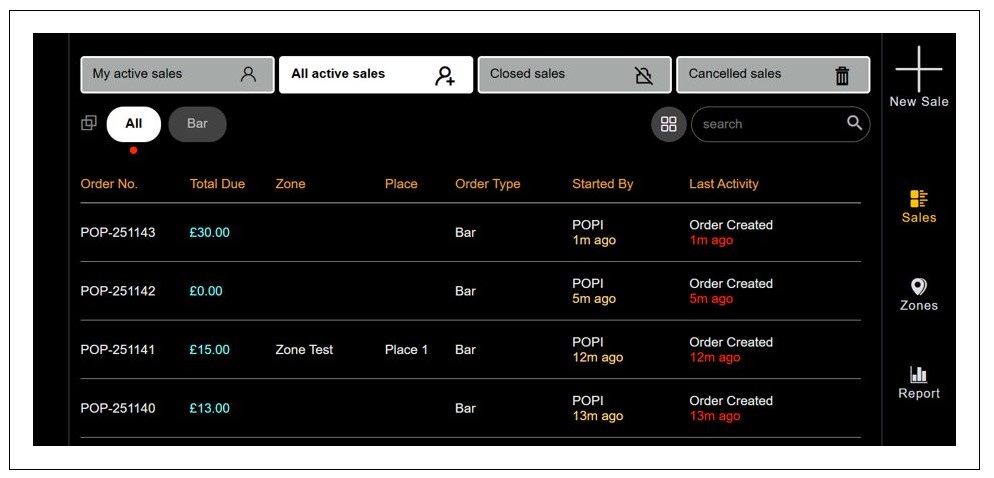
You can view each order’s details and/or mark as paid by card or cash by clicking on it on your POS.
View Orders Paid Via the Standalone Payment Method
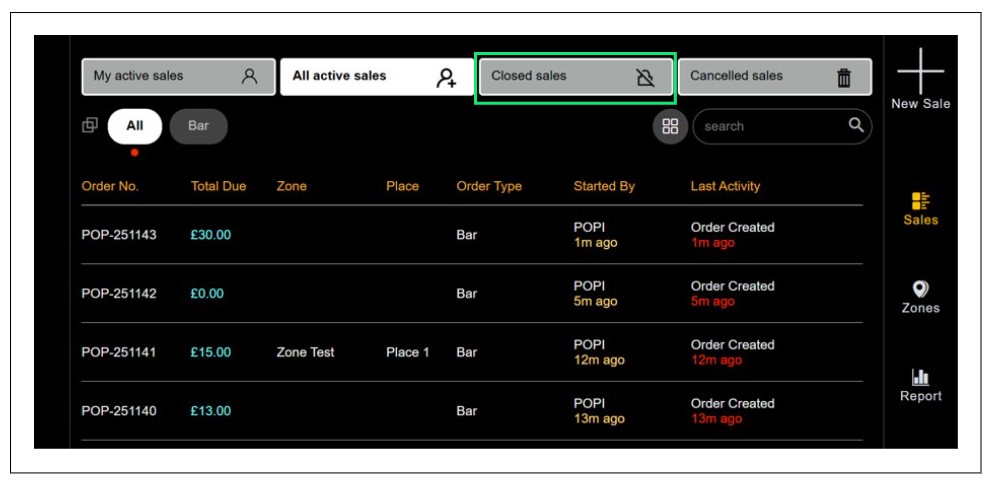
You can view orders paid later using the standalone payment mode under the Closed Sales tab on your POS. This ensures that you effectively track of all your table orders.
Synchronize Your Catalog with TISSL
You can easily synchronize your catalog with TISSL to ease onboarding while ensuring you have a consistent catalog across your online store and POS system. This feature allows users to:
- Import entire catalog to your online store. If you have no catalog on your GonnaOrder store but you have one on TISSL POS, you can import it to your store. Simply click the Synchronize Catalog button to initiate the catalog import process. Once the import process is complete, all items and categories are imported to your store. The imported catalog will also include any other child items specified on TISSL, such as options, variants, and their respective prices, descriptions, option group type, and preselection settings. Additionally, the imported catalog will have options listed under the correct option groups and product items – Every catalog item is linked accurately. Therefore, you will have an identical catalog on your online store – just like the one on your POS.
- Fetch catalog updates from your POS. You can use the Synchronize Catalog option to update an existing catalog on your GonnaOrder store. The following additions/updates are made to the existing online catalog:
Order items update. All items (both main and child items e.g., options) listed on your POS but not on your online store are added to your store catalog.
Price updates. The item prices on your GonnaOrder catalog are matched with those on your POS. Therefore, you must ensure you have the intended prices on your POS before syncing your catalog.
Synchronize Catalog with TISSL 
Note
- Synchronizing catalog with TISSL helps you achieve a consistent catalog across your online store and POS. This can save time needed to create catalog from scratch.
- When you use the synchronize catalog feature, all catalog items, including options and product items and the link between option groups and product items are imported/updated in your online store catalog.
Disable/Disconnect TISSL POS From Your Store
If you no longer want to send orders to your TISSL POS, you can deactivate or disconnect the integration from your store. To deactivate the connection, simply toggle the Active button to No. We recommend this option when you want to temporarily pause the connection since the integration details remain on your store. To reactivate it in the future, you only need to toggle the button to Yes, saving time.
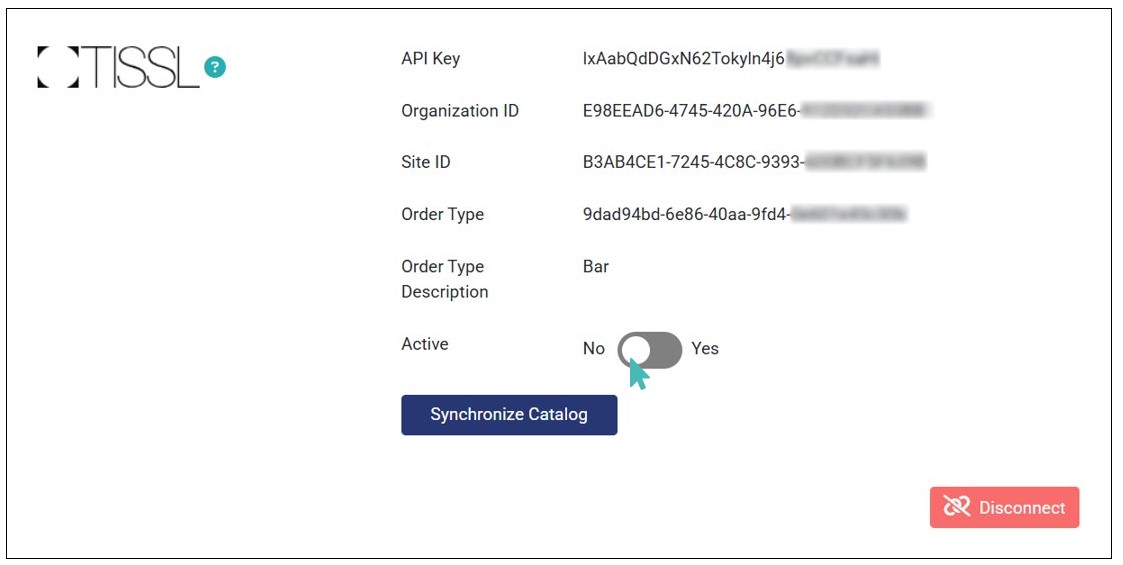
Alternatively, you can disconnect TISSL POS from your store to stop the automatic submission of orders to your POS. This option permanently deletes your integration details from the store. Therefore, we only recommend it when you want to permanently delete the integration. Simply click the Disconnect under TISSL integration settings.