GonnaOrder allows you to view and manage all your online Payment Transactions from one dashboard. The payment transactions dashboard lets you visualize all payments In Progress, Successful, and Failed status. You can also view what the payments are for, that is Orders, Reservations, or Standalone Payments. This ensures you have a 360-degree of all incoming transactions in your store.
Note
The Payment Transactions page only shows payments made online. Therefore, payments made offline (via cash, card, bank transfer, cheque) are not included on the payment transactions dashboard.
On This Page
- Getting Started with Payment Transactions
- View Payment Transactions
- View Reference for Each Payment Transaction
Getting Started with Payment Transactions
To start viewing incoming payment transactions, you must enable online payments for your store. This implies that you must connect one of the supported payment methods under Payments Settings. Also, you should set online payments as optional or mandatory when submitting orders and reservations. If you would like to view all incoming payments, you should consider setting payments as mandatory for orders and Reservation charge strategy Per Person or Per Reservation.
View Payment Transactions
As initially stated, all payments made online will reflect on the Payment Transactions page. This includes payments for:
- Orders
- Reservations
- Standalone payments
Here are the steps to follow to access your payment transactions:
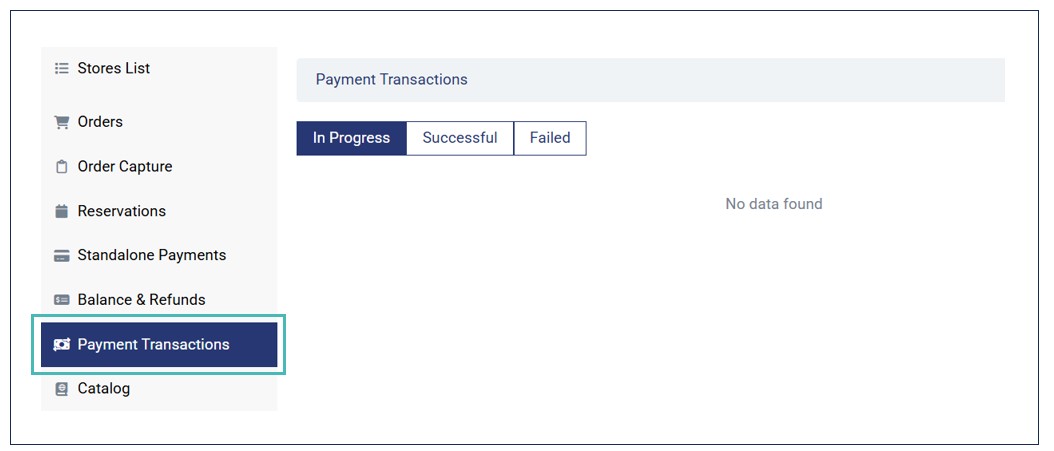
- Login to your store and click Payment Transactions on the side menu.
- You can click In Progress, Successful, or Failed tabs to view the respective transactions. In progress transactions are the payments being processed while the Successful tab shows the payment that have been completed by the customer. When you click the Failed tab, you can view a list of all unsuccessful payments.
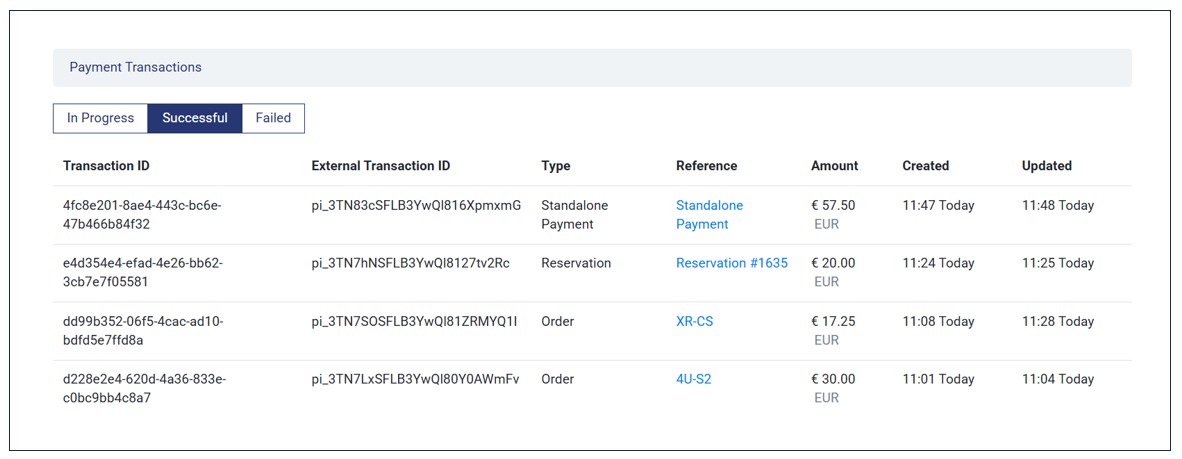
- On each payment transaction, you can view its:
- Transaction ID. It is the unique ID given to each payment transaction.
- External Transaction ID. This ID is associated with the payment provider. You can use it to search the payment on the connected payment provider.
- Type. This is the type of payment transaction made by the customer. It can be a payment for Reservation, Order, or a Standalone Payment.
- Reference. This field shows the reference ID for the order, reservation, or standalone payment. You can click the ID on this field to open the order, reservation, or standalone payment associated with the payment transaction.
- Amount. Here, you can see the amount paid on each transaction.
- Created. This field shows the timestamp when the payment was created.
- Updated. This field shows the timestamp when the payment transaction was last updated.
Note that, when a payment is in progress, customers or admin users (via order capture) cannot edit the order. This is to ensure system integrity by preventing users from adding or removing order items or quantity, leading to an incorrect payment amount.
Here is the error received when attempting to edit an order while its payment is In Progress.

View Reference for Each Payment Transaction
In most cases, you may want to find out the reason/reference for a specific transaction. In that case, you can use the reference field on the payment transaction to find out the order, reservation, or standalone payment associated with a specific transaction. This comes in handy when you want to follow up on a specific transaction (e.g., when a customer inquires about a specific payment).
Simply click the Order ID, Reservation ID, or Standalone Payment link on the reference field. Here is an example of how it works.
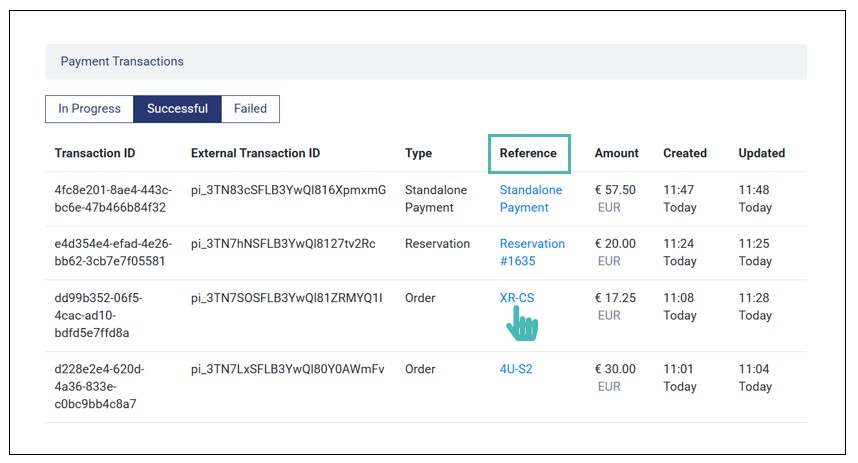
On clicking the above, the order associated with the payment opens. Therefore, you can view all details about the order.

Similarly, if you click a standalone payment or reservation reference ID, you can view its details.
Note
You can view the order, reservation, or standalone payment associated with a transaction in the Payment Transactions list. Simply click the reference ID to open the order, reservation, or standalone payment details associated with the transaction.