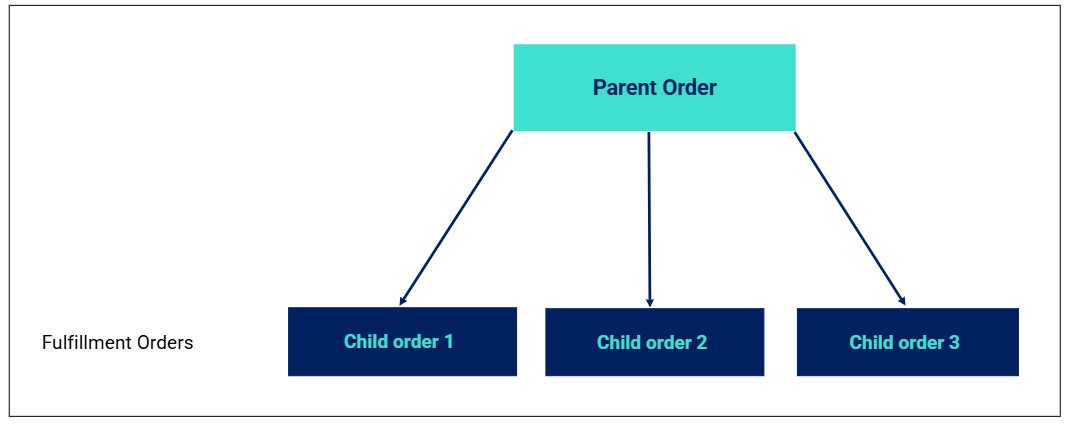
GonnaOrder allows for decomposition of orders depending on various factors. For instance, an order can be decomposed based on the desired wish date/time, address, or by store (in a multi-store & multi-catalog setup where catalog sharing is enabled). This simply means that one order is decomposed into several child orders that based on the exact wish date, address, or store. You can view the parent order as well as the child orders associated with it. This ensures smooth fulfillment of orders with items that have different wish dates/addresses or are linked from different stores. In this guide, we explore the order decomposition feature, including how and when it works as well as the ins and outs of the feature.
GonnaOrder supports order decomposition based on:
The exact order wish date & time
The exact order wish date + delivery address
The store in a multi-store & multi-catalog setup where catalog sharing is enabled for stores.
On This Page
- When Does Order Decomposition Occur?
- Rules for Grouping/Decomposing an Order
- Decomposition in Multi-Day and Multi-Address Orders
- Order Decomposition Based on Stores – For Linked Stores
- Comparison Between Parent and Child Orders in Order Decomposition
- What Customers See When Their Order is Decomposed
- Which Order Does the Store Fulfill in a Decomposed Order?
- How Do Payments, Vouchers, and Tips Apply in a Decomposed Order?
- Status Roll Up Behavior for Decomposed Orders
- How Decomposition Impacts Order Submission to POS and Delivery Integrations
When Does Order Decomposition Occur?
For order decomposition to happen, several settings/conditions must be set/met by the store and/or order. These settings/conditions include:
The desired date & time level must be set to order item level. This way, each item in the order can have its wish date and time, qualifying the order for decomposition. Learn more about setting order wish date and time at order item level.
The order must be in the confirmed status. Order decomposition occurs when the order is accepted or confirmed at the store. This means you must Confirm the order (if it’s in the Open status tab) once it is submitted by the customer. However, if you have enabled the automatically accept orders setting, the order is automatically confirmed and decomposed once the customer submits it. Therefore, you don’t need to take any further action on the orders dashboard.
The order must contain multiple (more than one) order items with varying wish date or time. This way, the order is decomposed based on the order items’ exact wish date or time.
Rules for Grouping/Decomposing an Order
Decomposing of an order is based on the exact wish time of the order items. Therefore, if an order has two items sharing the wish date and time and one item with a different wish date/time, it will be decomposed into two orders – one with two items and the other with one item. Here is how such parent order will look like on the orders dashboard.
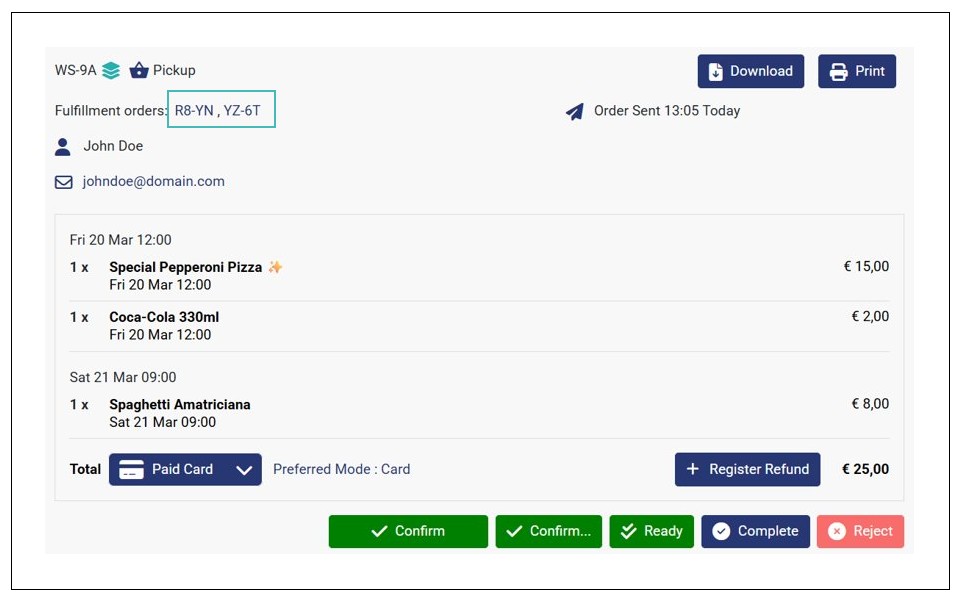
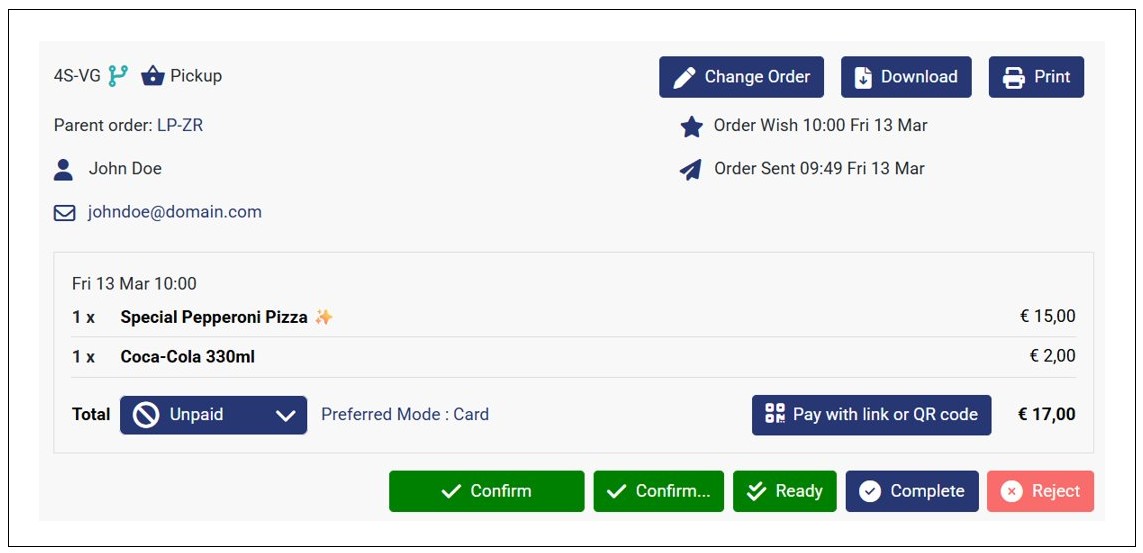
You can click the order ID of any of the fulfillment orders to open its details. Here’s how a child (fulfillment) order will look like.
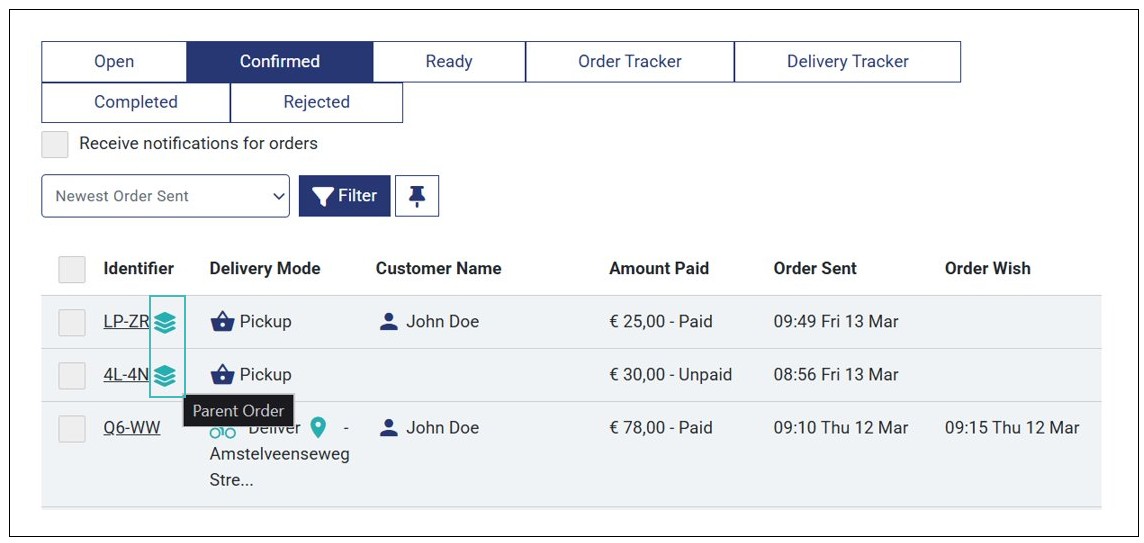
Decomposed parent orders have a parent order icon on the orders list and order details page in the Orders dashboard. This helps you identify them faster.
On the other hand, the fulfillment or child orders will have the child icon on the fulfillment orders list and also when you open the child order details.

Decomposition in Multi-Day and Multi-Address Orders
Order decomposition can occur based on wish date only or wish date + address. Therefore, if your customer places an multi-day & multi-address order, the order is decomposed based on the wish date and address. However, order decomposition doesn’t fail due to missing addresses.

Here’s an example of a customer submitting a multi-day multi-address order on the checkout page:

Once the order is Confirmed (accepted), it is decomposed into fulfillment orders based on the wish dates and addresses. Here’s how such a parent order will look like on orders dashboard when decomposed.
When you open any of the fulfillment/child orders, it will have its wish date and address as shown below.
Order Decomposition Based on Stores – For Linked Stores
When a store is part of chain stores (multi-store & multi-catalog stores) and catalog sharing is enabled, it can link categories and catalog items from any store (parent, child, or grandchildren) that is part of the organization. When this happens, one store can sell items from a different store within the organization. These items are not locally listed within the store. However, customers can view and order them as if they’re available at the store.
When this occurs, the order is decomposed into several child orders depending on the order items source store. Here’s a quick scenario to illustrate this:
- Store A and Store B are part of the same chain (parent, child or grandchildren)
- Store A has items from B (shared items)
- A customer places an order on store A with some locally listed items and other items from store B
- Order decomposition outcome: The order is decomposed into two child orders, one with order items for store A and one with items for store B.
For order decomposition to occur based on store in multi-store setups:
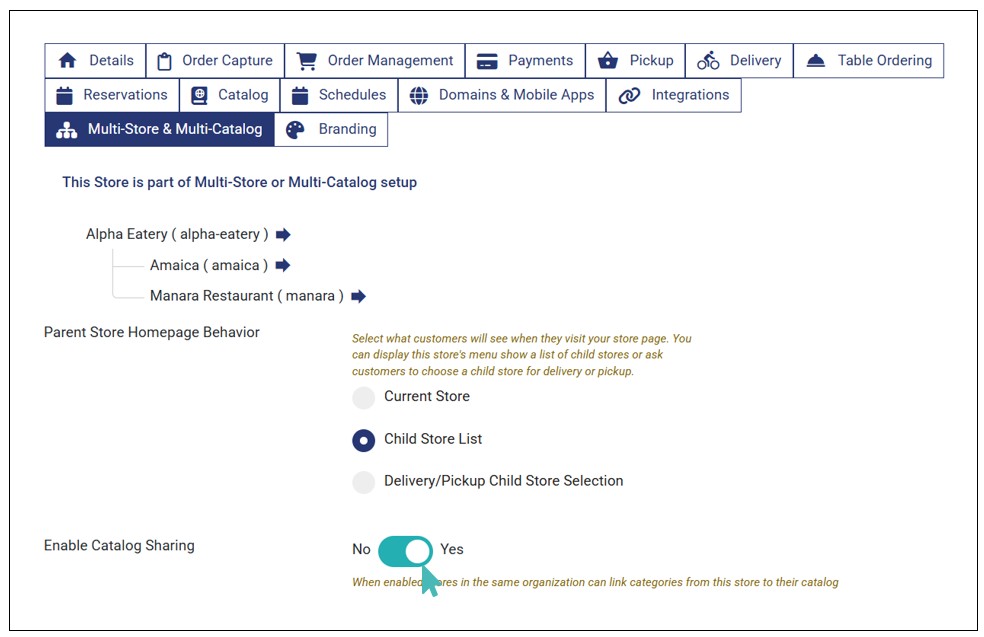
- Catalog sharing must be enabled for the stores in the multi-store setup.
- The store must have linked external categories and items from other stores within the organization.
- The order must have multiple items, with some items from store A and others from store B.
Here is a step by step guide on order decomposition based on stores in a multi-store setup:
- The store contacts support team to enable catalog sharing in the multi-store & multi-catalog setup. See more about enabling catalog sharing in multi-stores.
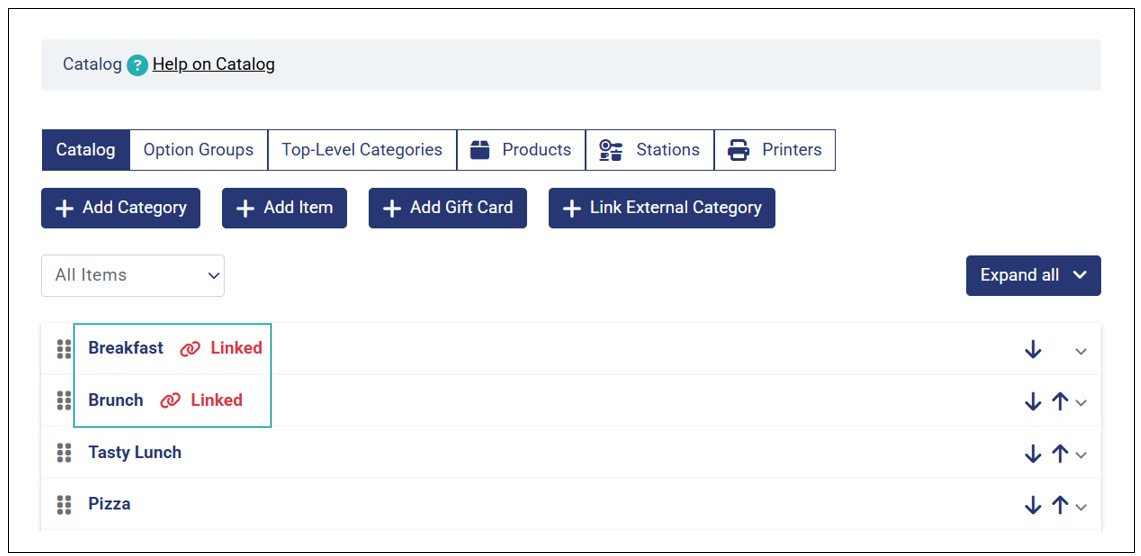
- One store from the multi-store setup links external categories and items from another store within the organization. See more about linking external categories.
- The categories are marked as linked on the admin UI catalog page.
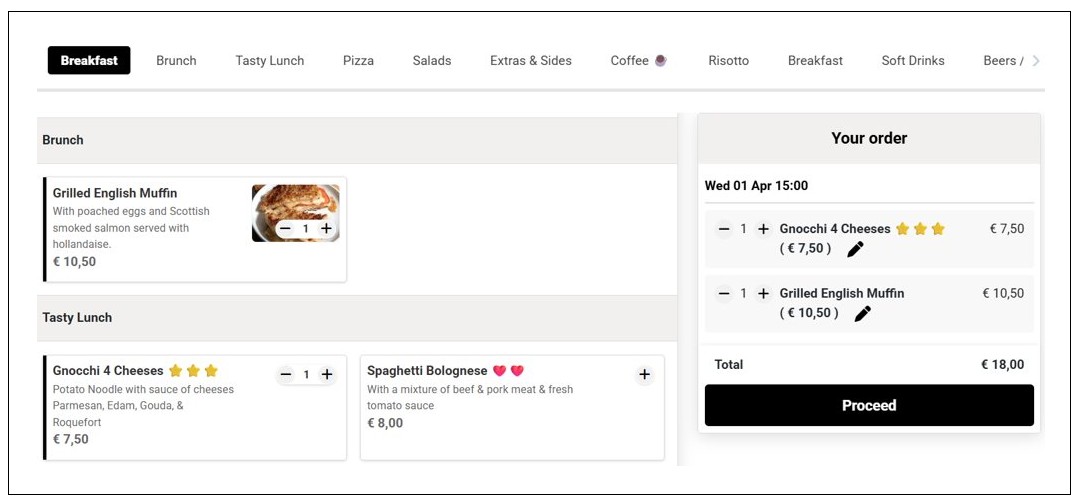
- The customer places an order with locally listed item(s) and others from the linked external categories.
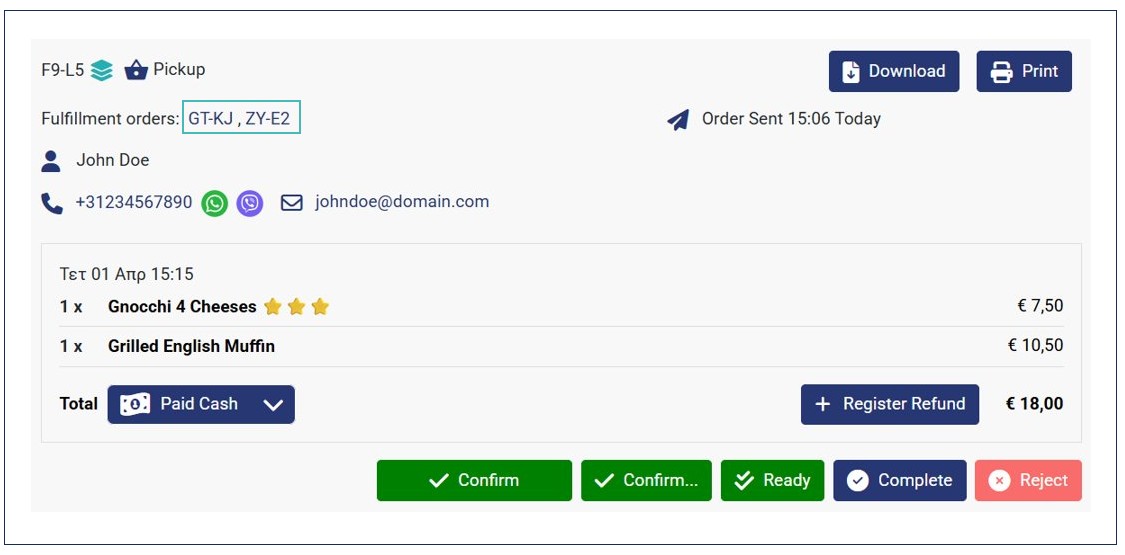
- Once the order is confirmed (accepted), it is decomposed into two Fulfillment orders, one with locally listed item and the other with the externally linked item from another store. The number of fulfillment orders depends on the number of stores the order items are from. Here’s how the order will look like once decomposed.
- Upon clicking any of the fulfillment orders, you can view its details as well. Each fulfillment order represents a unique store associated with the items in the order.


Comparison Between Parent and Child Orders in Order Decomposition
While the parent and fulfillment orders are related, they differ in various aspects in how they’re treated or appear. Here’s a quick overview table highlighting some key differences and similarities between parent and child orders when an order is decomposed:
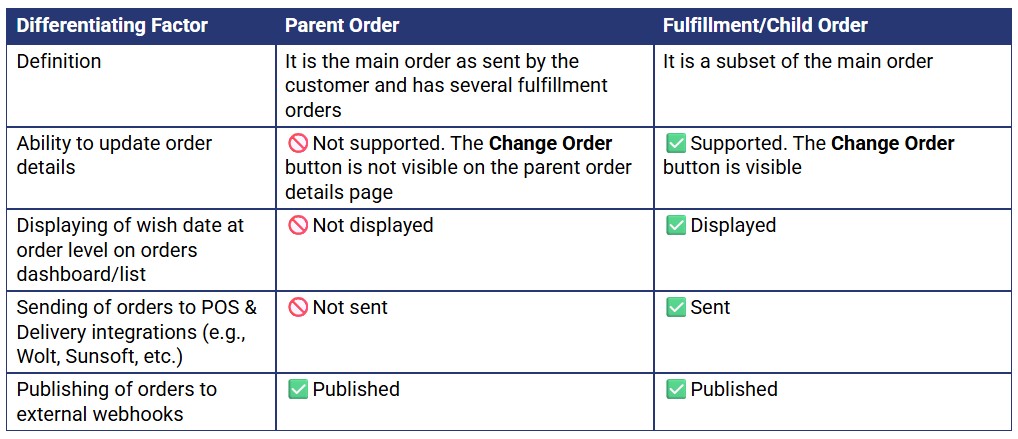
What Customers See When Their Order is Decomposed
When a customer submits an order that qualifies for decomposition, they are not notified if their order is decomposed or not. In fact, they will only view one order (parent), with items grouped based on the wish date & address (if it’s a multi-address order) on the self-care portal (if logged in) and email notification (if the email was provided when submitting the order) receipt. Therefore, they do not see any child/ fulfillment orders based on the wish dates.
Here’s how such an order will look like on the customer’s self-care portal.

Which Order Does the Store Fulfill in a Decomposed Order?
When dealing with a decomposed order, your store fulfills the child/ fulfillment orders. Therefore, if you mark all fulfillment orders in a parent order as Ready or Complete, the parent order will automatically move to the Ready or Complete tab. This ensures each fulfillment order is processed independently preventing possible confusion in order processing.
How Do Payments, Vouchers, and Tips Apply in a Decomposed Order?
When pays for an order that qualifies for decomposition based on exact wish date, payments are applied to the parent order. This implies that your customers only need to pay once when submitting the order (for the online payment option). However, if payment is done later (via cash, card, bank transfer, or cheque) after order submission and decomposition, the payment status change is not automatically propagated to the fulfillment/child orders. Therefore, you will need to update each fulfillment order’s payment status individually.
Just like online payment for orders that qualify for decomposition, vouchers and tips are applied at the parent order level. Therefore, fulfillment orders do not show the applied discount or tips left by customer. This eliminates the risk of double transactions, especially when evaluating your store’s statistics and reports.
Status Roll Up Behavior for Decomposed Orders
In decomposed orders, there’s a direct relationship between the parent and child (fulfillment) order. The parent’s order status updates based on the child’s status. For example, if all child (fulfillment) orders are marked as Ready or Complete, the parent order status is automatically updated to the respective status. Therefore, it will move to the Ready or Completed status tab. However, the status roll-up behavior doesn’t occur for Rejected or Cancelled orders.
On the other hand, there is no parent to child propagation of changes once an order is decomposed. This means that once decomposed, no automatic actions can be performed to keep parent and children aligned beyond the Ready/Completed status roll-up. For example, if you change the payment status (for pay later option) of the parent order, the payment status is not updated on child orders.
Note
- If all child orders are marked Ready, then the parent becomes Ready. However, if only some children are Ready, no special “partial ready” state is introduced.
- If all child orders are Completed, then the parent becomes Completed.
- If the user changes status on the parent once it’s decomposed, children do not change automatically.
How Decomposition Impacts Order Submission to POS and Delivery Integrations
If you have integrated your store with a POS or delivery provider, you must understand how decomposed orders are sent to your POS or delivery provider. Here’s what you need to know about such orders:
- Only fulfillment orders are sent/published to your POS or delivery provider.
- Decomposed parent orders are not published to your POS/ delivery provider.
Therefore, when searching for decomposed orders on your delivery partner or POS, use the external ID on the individual fulfillment orders – not the parent order ID.