VR Payment is a popular payment provider that specializes in creating offline, online, mobile & cross-channel payment solutions for businesses across Germany. Connecting your GonnaOrder store with VR Payment enables you to receive online payments seamlessly. Whether it is order, standalone, or reservations payments, customers enjoy a smooth payment experience through a secure hosted payment page, where they can complete payments using their card.
| Website | https://www.vr-payment.de |
| Supported Payment methods | Credit and debit cards |
| Available countries | Germany |
| Payment provider logo |  |
On This Page
Connect to VR Payment
Before you can receive online payments via VR Payment, you must first integrate your store with the payment provider. Here’s a quick guide on how to integrate your store with VR Payment and be ready to start receiving online payments.
- Go to your store Settings > Payments.
- Scroll down the supported payment providers and find the VR Payment logo.
- Click Connect to get started.
- Enter the required integration details on the respective fields and click Connect. Contact VR Payment support to obtain these integration credentials.
Space ID
User ID
Authentication Key
Enter VR Payment Integration Details and Connect 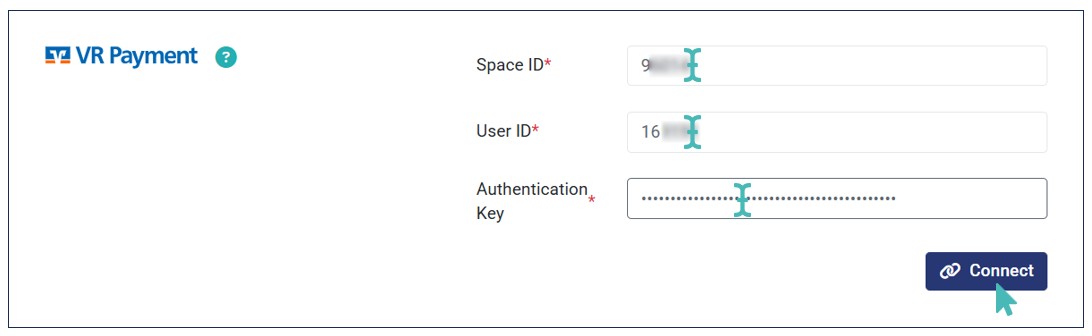
- The store is successfully connected to VR Payment. Therefore, you customers can start paying for orders and reservations online. Also, they can make standalone payments online with ease.
Successful VR Payment Integration 

VR Payment Interface
When customers proceed to pay online, they are redirected to a secure hosted payment page, where they can complete their payment using their cards. They only need to provide valid credit/debit card details and pay to complete the transaction. Once the payment is processed, they are redirected back to the thank you page.
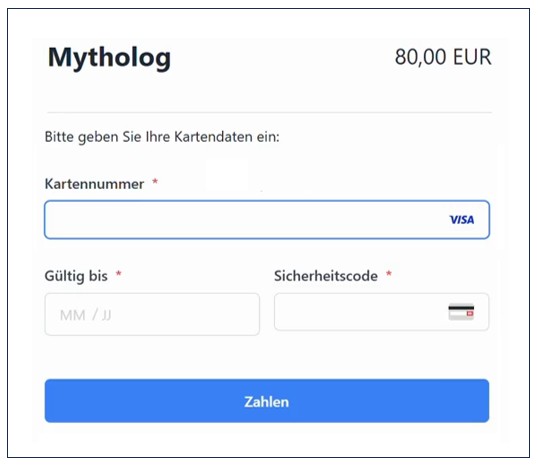
The order is marked as paid on the orders dashboard, and the transaction will appear on the payment transactions page.

Disconnect VR Payments From Your Store
You can deactivate or disconnect VR Payment from your store. These actions ensure that you can stop receiving online payments via VR payments whenever you wish. To deactivate VR Payment, switch the Active toggle on the VR Payment integration section to No.
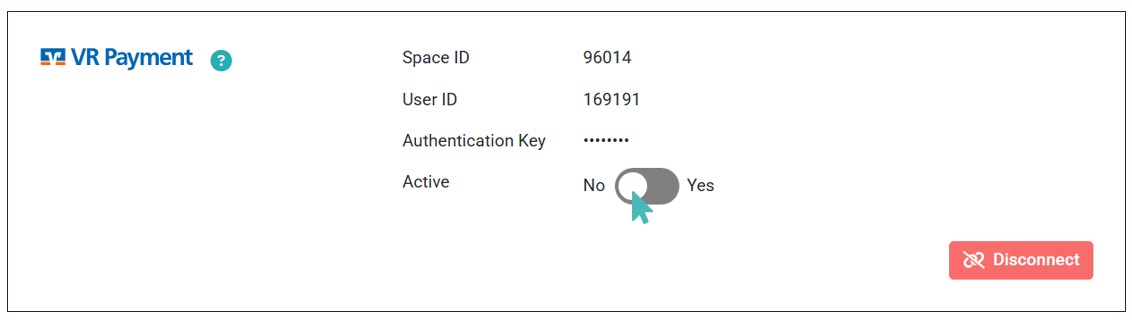
If you wish to disconnect VR Payment from your store, click the Disconnect button.

Note that, deactivating VR Payment let’s you keep your integration details on the store while disconnecting it removes/ deletes them. Therefore, deactivation is the ideal option if you wish to temporarily pause VR Payments while disconnection is better for long-term or permanent decision to stop receiving online payments via the provider.