GonnaOrder allows you to setup and manage promotions to help achieve the desired outcomes. This may include promoting sales for specific items on specific days/hours or even boosting order value. You can customize your promotions as you wish, ensuring you have direct control over your promotion strategy. Also, you can use these promotions to incentivize specific customer actions/behaviors directly from the customer menu. In this guide, we explore how to setup promotions in your GonnaOrder store and how they work.
On This Page
- What is a Promotion in GonnaOrder?
- Add a New Promotion
- Edit a Promotion
- Delete a Promotion
- Promotions FAQs
What is a Promotion in GonnaOrder?
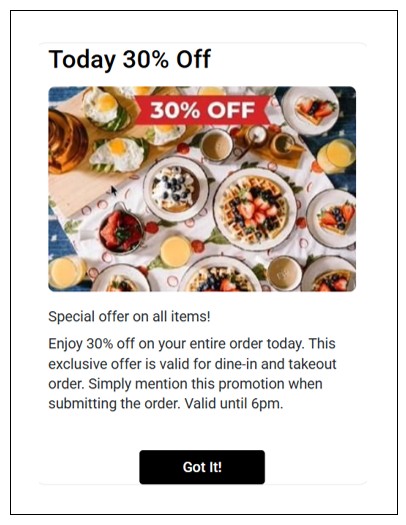
In some business cases, you may want to communicate short campaigns such as “Free coffee for orders above €X”, “Happy Hour”, or “New seasonal menu” without changing catalog items. This is where GonnaOrder promotions come in handy. You can create a promotion campaign to inform customers about such special offers. When customers open your store menu for the first time, the promotion popup appears, which can help capture the customer’s attention. When created strategically, these promotions can be instrumental in boosting your sales during those sessions.
Add a New Promotion
Adding promotions in your store is a straightforward process. Here are the steps to follow to create your first promotion for your store in minutes:
- Login to your store and click Marketing on the side menu.
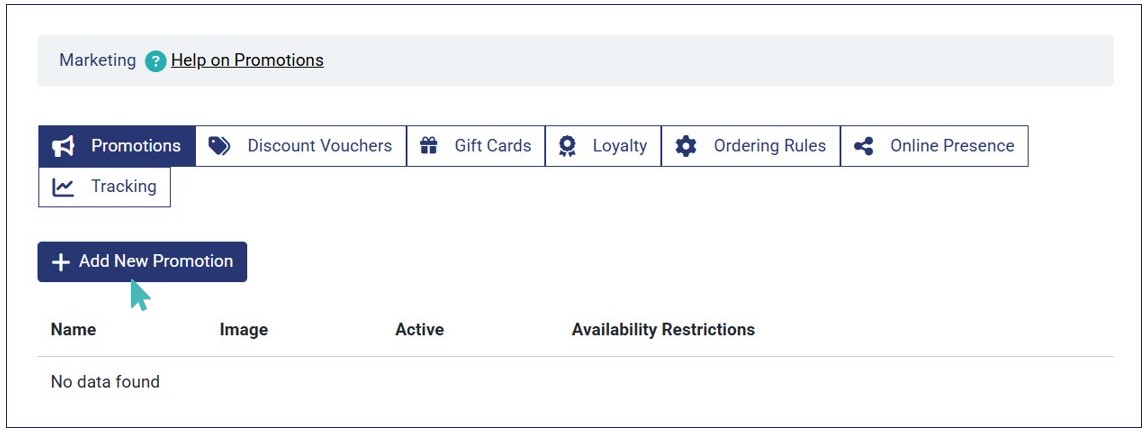
- Next, click the Promotions tab and tap the Add New Promotion button.
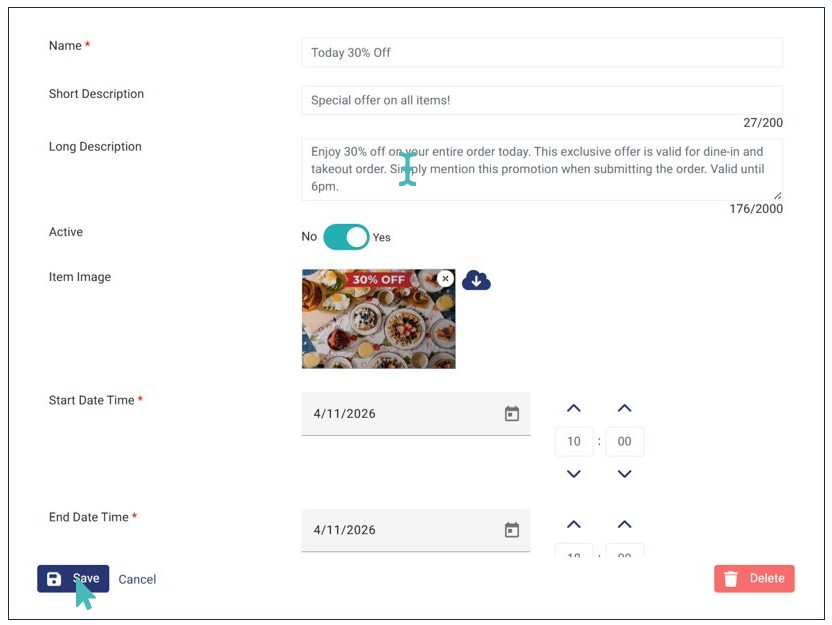
- Enter the required/desired promotion details and click Save. The following are the fields available on the Add New Promotion page:
- Name. This is where you provide the name of your promotion.
- Short Description. Here, you can provide a brief description of your promotion (up to 200 characters).
- Long Description. This is where you describe your promotion in detail. You can outline how it promotion works, the categories or items it is applicable to, and more.
- Active. This is the active status of the promotion. By default, the toggle is set to Yes. You can disable it if you don’t wish to activate the promotion immediately.
- Item Image. You can optionally upload an image for your promotion to enhance its appeal.
- Start Date Time. This is the start date/time of the promotion.
- End Date Time. This is the end date of the promotion.
- Notification Date Time. This is where you choose the date/time to send a push notification for the promotion.
- Availability Restrictions. Here, you can restrict the promotion availability based on the selected schedule.
- The promotion is successfully created and will appear as a popup on the customer menu when they open the homepage for the first time.
- Once the customer views the promotion, they can click Got It! to proceed to the menu.

Edit a Promotion
GonnaOrder allows you to make changes to your promotions. For instance, you may want to change or extend the start or end time for various reasons. In that case, you can make the changes as you wish. Here are the steps to follow edit your promotions:
- Login to your store and click Marketing on the side menu.
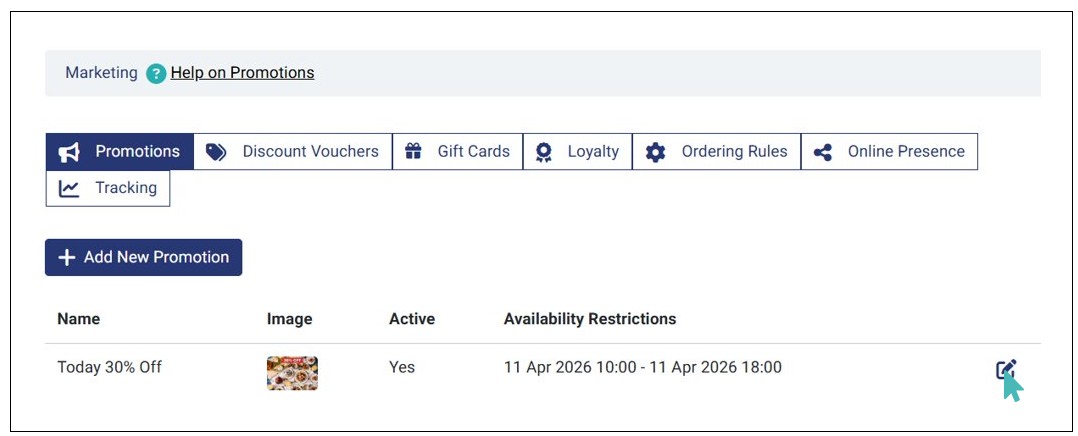
- Next, click the Promotion you would like to edit.
- Edit the desired promotion details and click Save.
- Once saved, the new promotion details will reflect immediately on both the admin and customer UI.
Delete a Promotion
If you no longer need a specific promotion (e.g., when its validity period is over), you can delete it permanently. Simply, click the edit icon on the promotion and the Delete it on the edit promotion page.
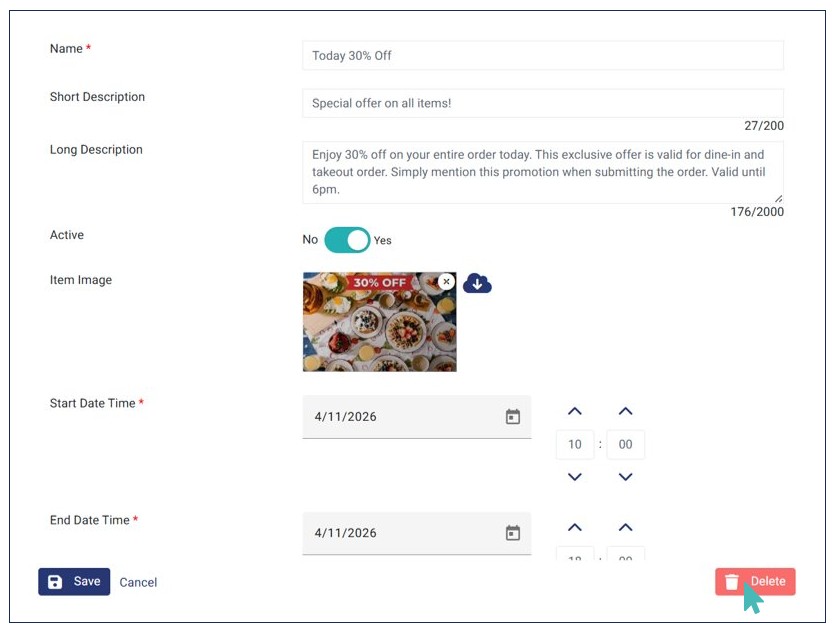
However, if you want to temporarily pause a promotion, you can deactivate it by switching the Active toggle to No.

Promotions FAQs
Can I create multiple promotions for my store?
Yes. You can add as many promotions as you wish. However, only one promotion is displayed on the customer menu at a time. If you have multiple active promotions, the latest eligible promotion is displayed. However, you can deactivate other promotions and keep only one promotion active on the list for it to be displayed to your customers.
How are promotions displayed to customers?
The promotion is displayed to the customer when they open the main menu for the first time (once per browser session). Therefore, it will not be shown for subsequent browsing sessions.
Can I run promotions in a kiosk?
Yes, you can run a promotion on kiosk. The promotion is displayed again after kiosk inactivity resets the current session.
What can I do to run a successful promotion?
To run a successful promotion, you should create an eye-catching name and description for your promotion. Also, consider adding a proper image to capture the attention of potential customers.