GonnaOrder simplifies catalog management across multi-stores by allowing you to link external categories and items across all stores in your multi-store setup. This way, you can create categories and items in one store and link them to any stores for sale. The customer can order the items even though they aren’t locally created within the store. However, this feature is only visible if Catalog Sharing has been enabled for the store. You can choose which items to sell or the one not to on the local store, giving you control over what is sold at any linked store.
Note
You can only link external categories and items if you have set up a multi-store & multi-catalog business and catalog sharing is enabled for the store.
On This Page
- Linking External Categories in a Multi-Store & Multi-Catalog Setup
- Edit Linked External Categories
- Unlink External Categories
Link External Categories in a Multi-Store & Multi-Catalog Setup
To start linking external categories & items, you must first have catalog sharing enabled on the parent store. This feature is available under Settings > Multi-Store & Multi-Catalog. Note that only super admins can enable catalog sharing for your store.

Here are the steps to follow to link external categories on your multi-store setup:
- Login to any store within the multi-store setup and click Catalog on the side menu.
- Click Link External Category on the Catalog tab that opens.
- Next, select the source store (the store from which you’d like to link categories) from the list of all stores within the multi-store & multi-catalog setup. Note that all stores within the multi-store ecosystem will appear except the current store. You can use the search store function if you have many stores in the multi-store setup to quickly find the desired source store.
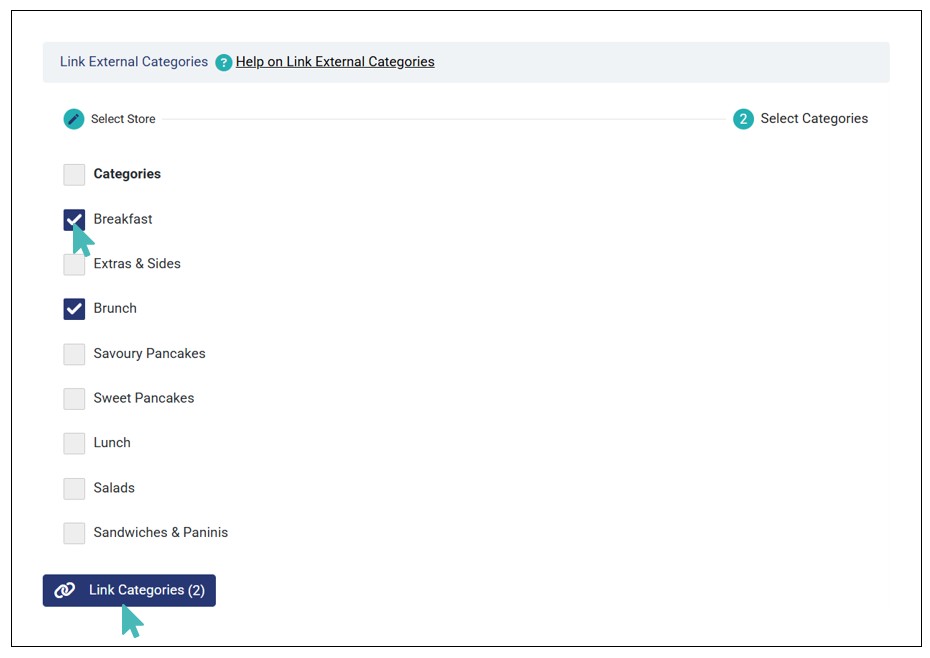
- Select the category or categories you’d like to link to the store and click Link Categories. You can click the Categories checkbox to select all categories with one click.
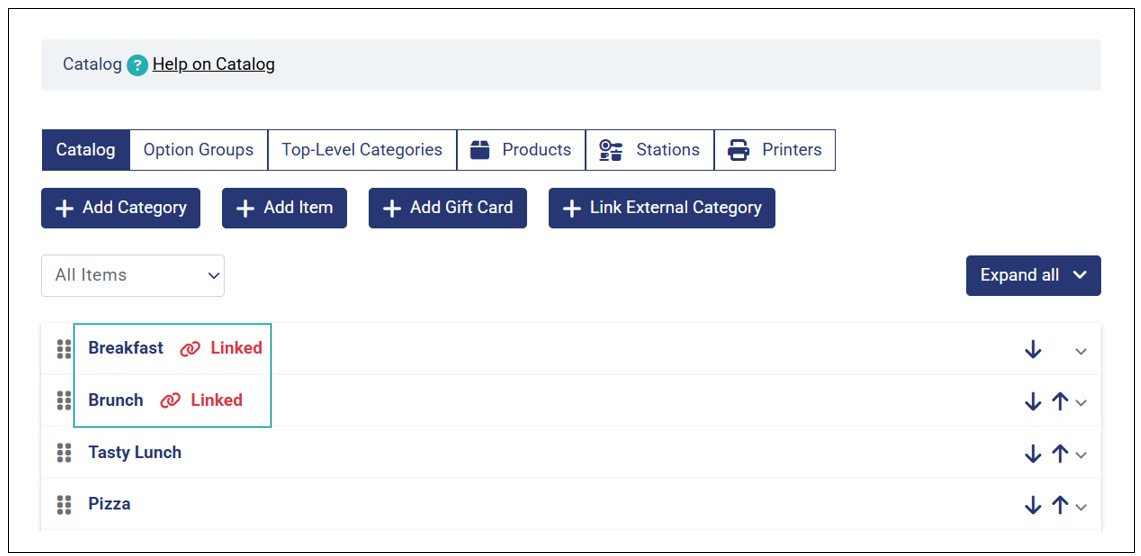
- The linked categories will appear with a Linked tag on the catalog page in the admin UI. This helps you quickly identify and differentiate between local and external categories.
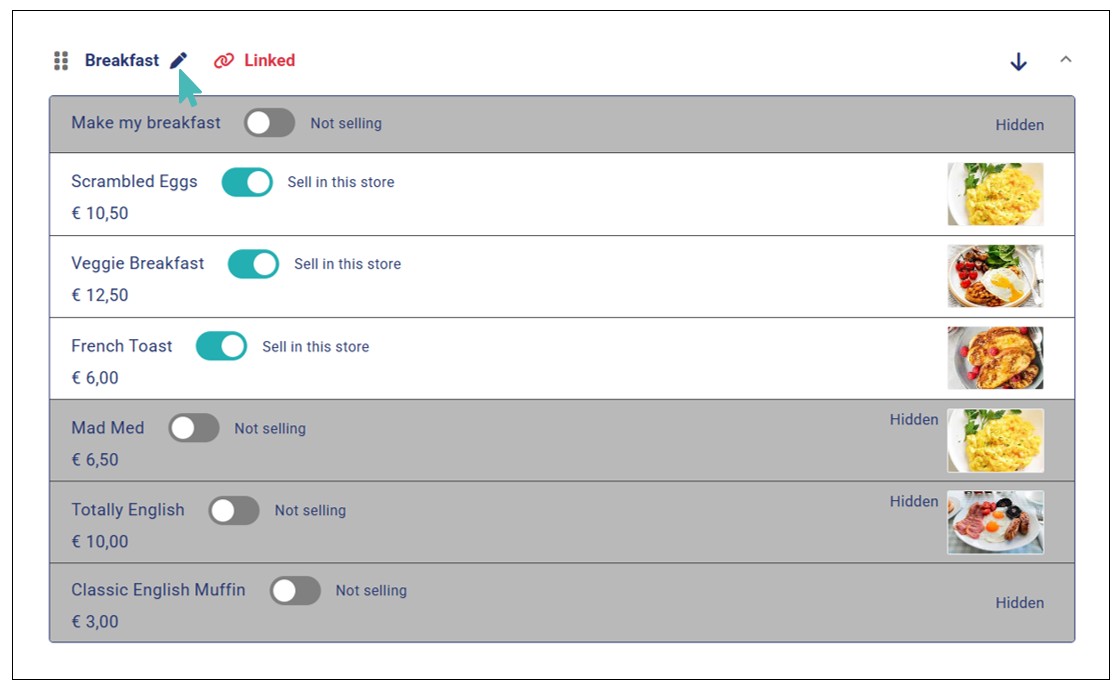
- Since you may not be selling all items in the external categories you just linked, you must select which items you want to sell in the current store. To do so, click the linked category to expand and view related items and mark the desired items as Selling by toggling the button.



The items you mark as Sell in this store will appear on the customer menu of the store while the ones marked as Not selling will be hidden from the customer menu. The customers will not see any difference between the linked category items and locally listed categories & items when placing an order. Here’s how the linked external category will appear on the customer menu:
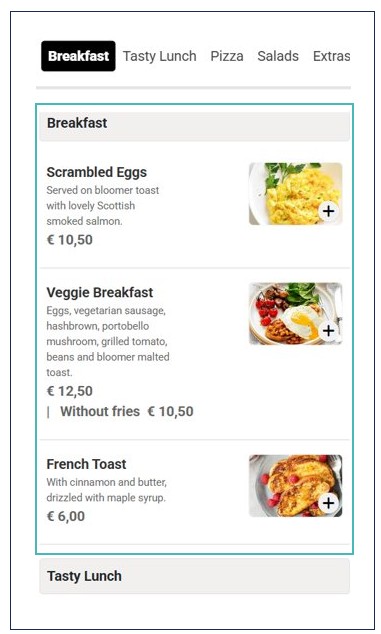
Note on Linking External Categories & Items
- The Link External Category button is only visible if Catalog Sharing is enabled for the multi-store organization.
- Customers do not see any difference between external or linked categories/items and locally created items when browsing the menu or placing an order.
Edit Linked External Categories
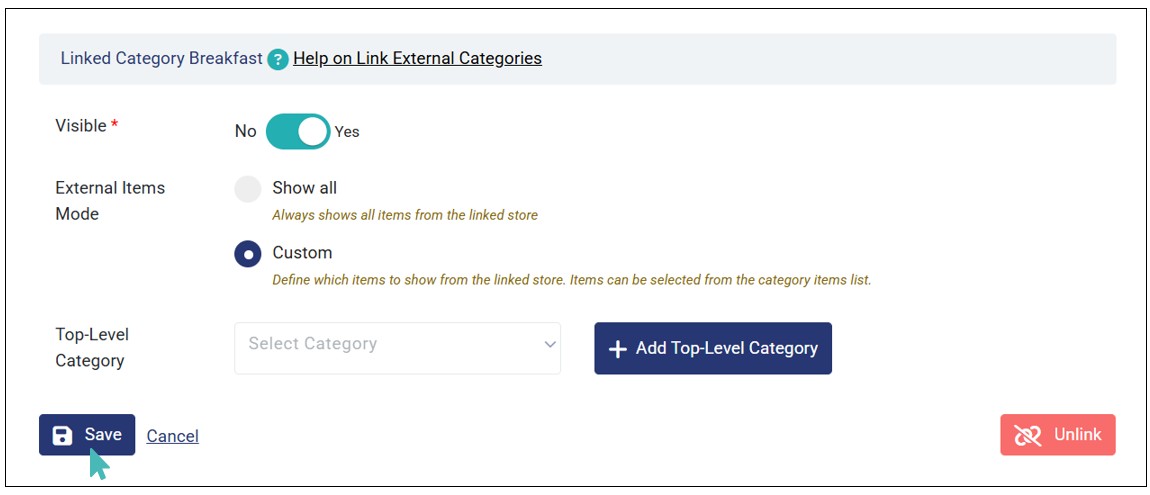
You can control various aspects of each linked external category. These aspects include:
Visibility. You can set a linked category as visible or hidden in the customer UI. If set as hidden (Visible button set to No), all items associated with that category will be hidden from the customer UI even if the are marked as sold in the store.
External Items Display Mode. Here is where you choose how you want the linked category’s items to appear. If you want to mark all of them as available for Sell in the store, you can choose the Show all mode. However, if you wish to individually select items to sell from the linked categories, choose the Custom mode.
Associate Linked Category with a Top-Level Category. You can associate an externally linked category with a top-level category in the local store.
To edit these settings, follow these steps:
- Go to the linked external category you’d like to edit and click it to expand its view.
- Next, click the edit button next to the linked category name.
- Edit the desired settings and click Save.
Note
You cannot edit items in linked external categories. In case you wish to edit their details, you may have to update them on the source store.
Unlink External Categories
If you’d like to stop selling items from linked external categories, you can simply Unlink the category. This removes the category, along with its items from the current store. However, the categories and items will remain available on the source store.
To do so, open the linked category you’d like to unlink by clicking the edit icon. Next, click the Unlink button and confirm your selection by clicking Okay on the dialog box that appears to proceed with the disconnection.
