The Pickup tab under Settings is where you configure settings for the ordering of pickup and takeaway orders. Here, you can configure what customer information you’d like to collect for pickup orders (i.e., name, email, phone number). Also, you can set whether you’d like to show your store’s address on the pickup ordering option in the customer checkout page.

On This Page
Configure Pickup Ordering Settings
Why Pickup Settings Are Important
The Pickup mode in GonnaOrder can be used for different purposes. One way to use it is for a customer is ordering within a store. This is for example done by scanning a QR code at the entrance of the store and placing their order while waiting in the queue. Another way to use it would be for a customer that is ordering when they are not physically in the store so that they don’t need to wait for when their order is ready for pickup when the customer reaches the store.
In the first situation, when the customer is already in the store, it often does not make sense to ask a customer for additional email and phone information. A customer could identify themselves to the cashier by mentioning the order number. On the other hand, when the customer is remote, contact information such as email and phone is important. Without these, the store owner cannot reach the customer.
Therefore, a store can decide what information to ask their customers for pickup, depending on the mode they operate.
Configure the Pickup Ordering Settings
From the store Settings on the side menu, select the Pickup tab. Based on your requirements, select if details like Name, Email, or Phone should be Hidden, Optional, or Mandatory on the customer checkout page.
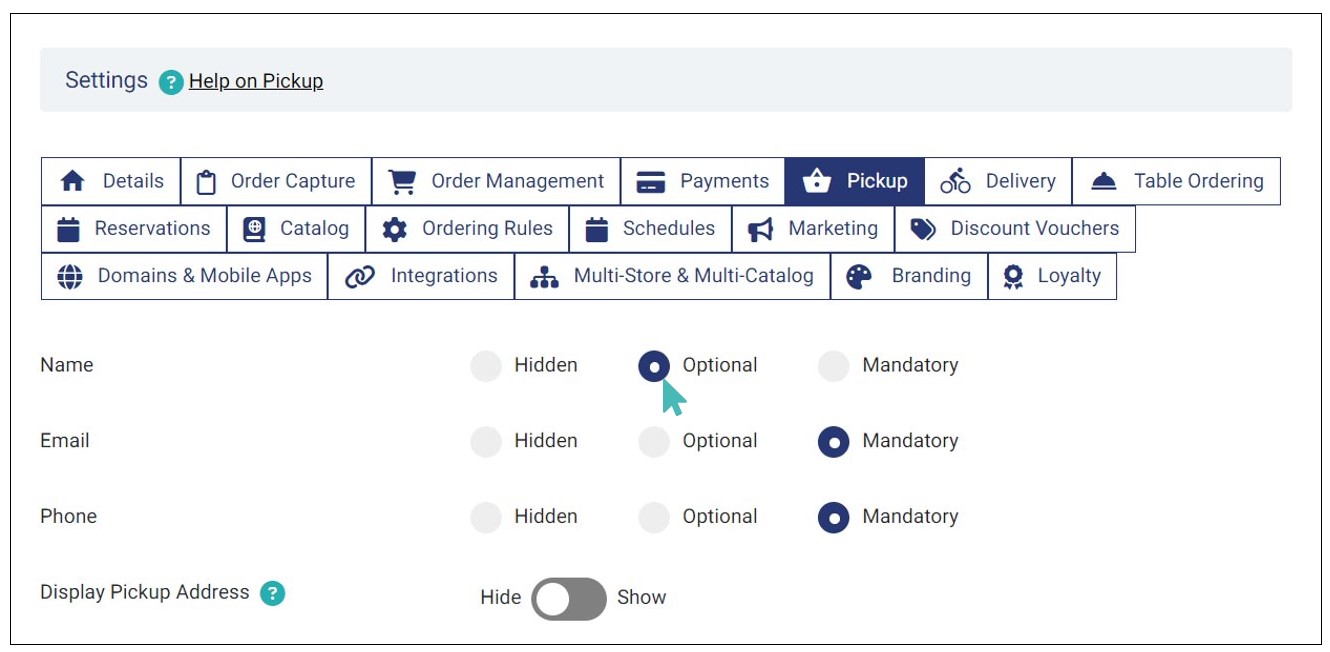
A configuration like the above with a mandatory email and telephone number but an optional name would result in an experience for the customer like the following screen:
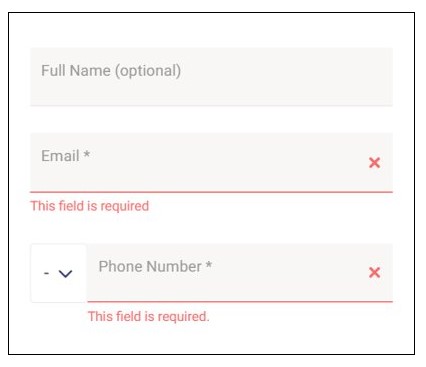
On the other hand, if you set any of the three fields as hidden, it will not appear on the customer checkout page.
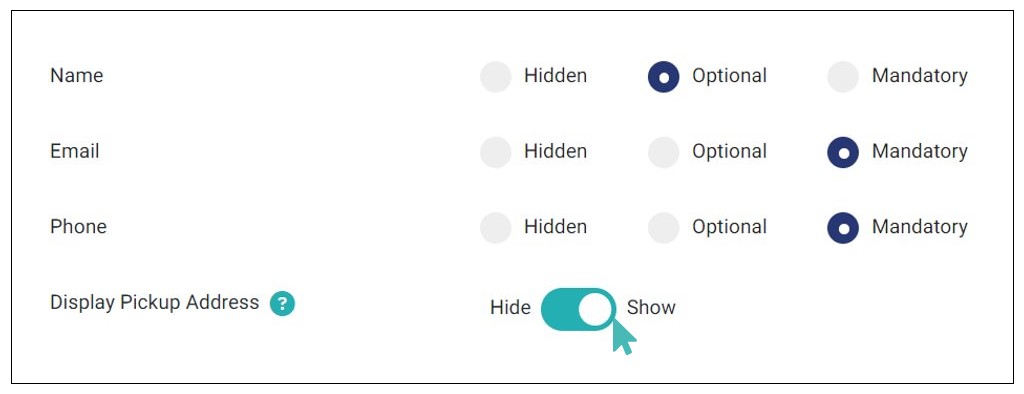
Hide or Show Pickup Address
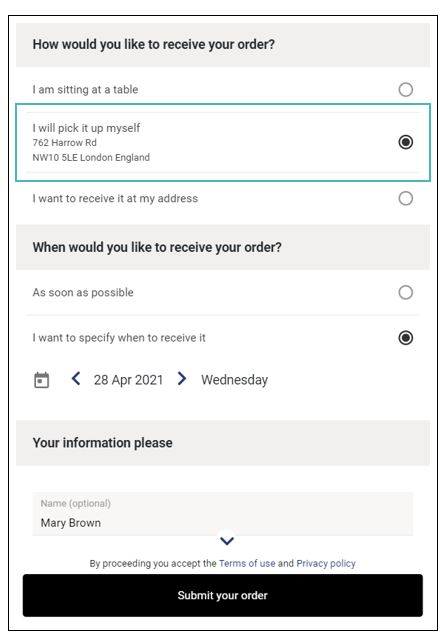
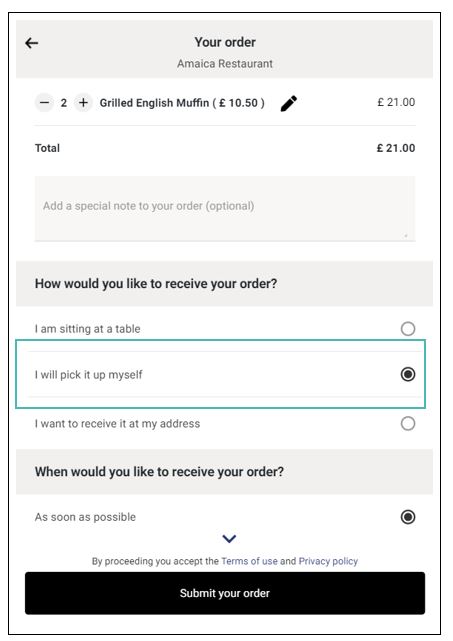
You may choose to display or hide your store address from the customers when they choose their orders. Displaying your store address makes it convenient for new customers to find your physical location but may not be necessary for some stores.