Citypay provides secure, easy, and end-to-end card payment solutions to thousands of merchants across European Economic Area (EEA). Accredited as a payment facilitator and payment service provider, Citypay offers resilient and diverse payment services. Connecting your GonnaOrder store with Citypay ensures your customers enjoy a safe and smooth online payment experience. Once connected to Citypay, you can receive online payments for orders, reservations, and even standalone payments.
| Website | https://www.citypay.com/ |
| Supported Payment methods | Credit and debit cards. |
| Available countries | Channel Islands & United Kingdom (UK). |
| Payment provider logo |  |
On This Page
- How to Connect Your GonnaOrder Store to Citypay
- Receive Payments Via Citypay
- Deactivate or Disconnect Citypay From Your Store
How to Connect Your GonnaOrder Store to Citypay
Here are the steps to follow to connect your store with Citypay:
- Contact Citypay to obtain your integration details, that is, the Client ID, Merchant ID, and Licence Key.
- Once the above details are provided, login to your store and click Settings on the side menu.
- Navigate to the Payments tab and scroll down to find Citypay from the supported payment providers.
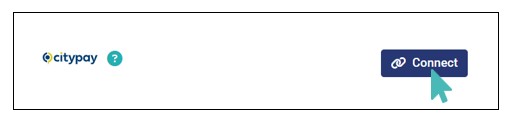
- Click Connect to initiate the Citypay connection process.
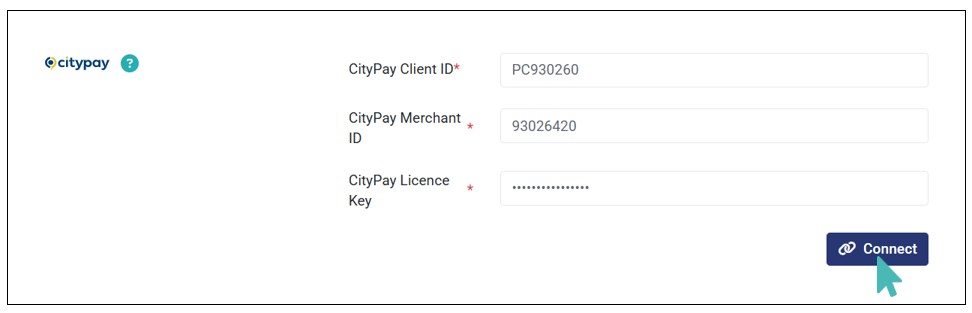
- Next, enter the integration details provided in step 1 on the respective fields and click Connect.
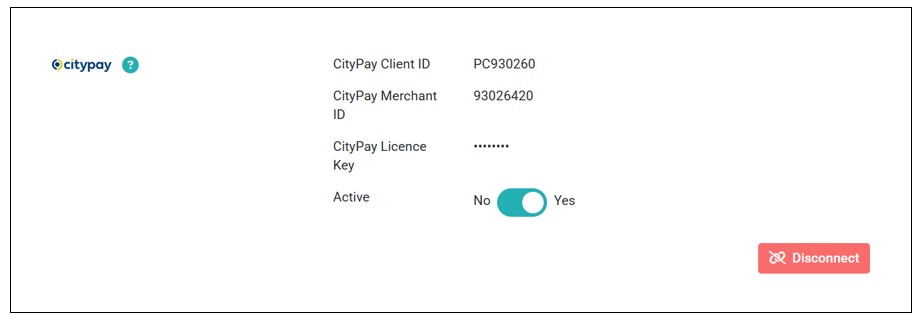
- If the provided integration details are valid, the store is successfully connected to Citypay, and you can start receiving online payments via the provider.
Receive Payments Via Citypay
As initially stated, once the connection is successful, you can start receiving online payments via the provider. When the customer proceeds to payment on the checkout page, they are redirected to a secure payment page where they can provide their card details to complete the payment.
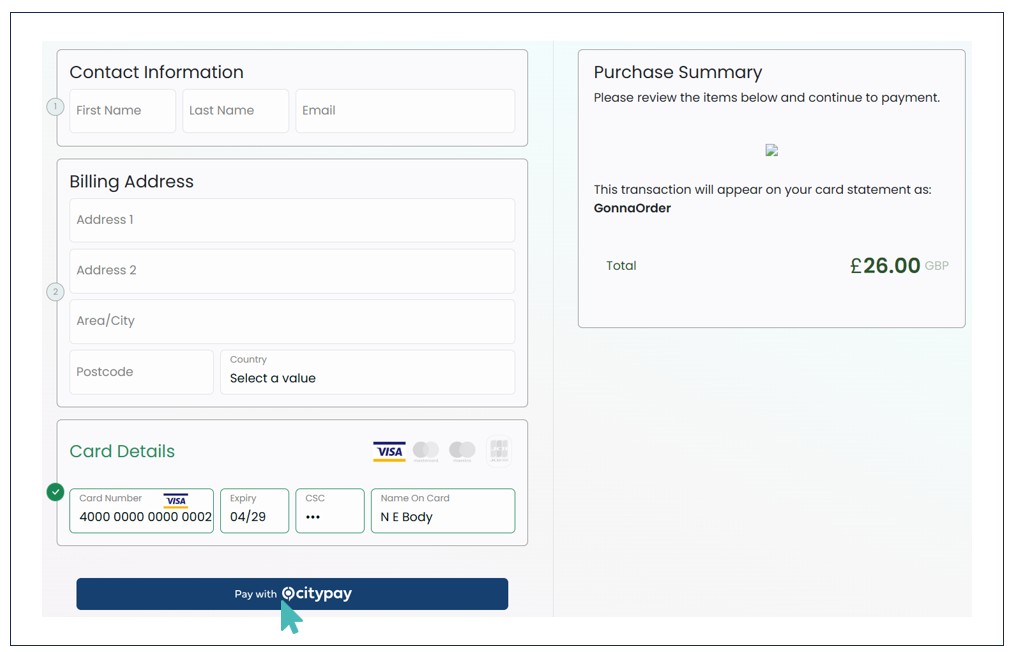
Once the payment is processed, the customer is redirected to the order thank you page. Also, the order is marked as paid on the orders dashboard in the admin UI.

Deactivate or Disconnect Citypay from Your Store
If you want to temporarily pause online payments via Citypay, you can deactivate the connection. This option lets you keep the integration details on your store for future use. To deactivate Citypay payments, simply toggle the Active button to No.
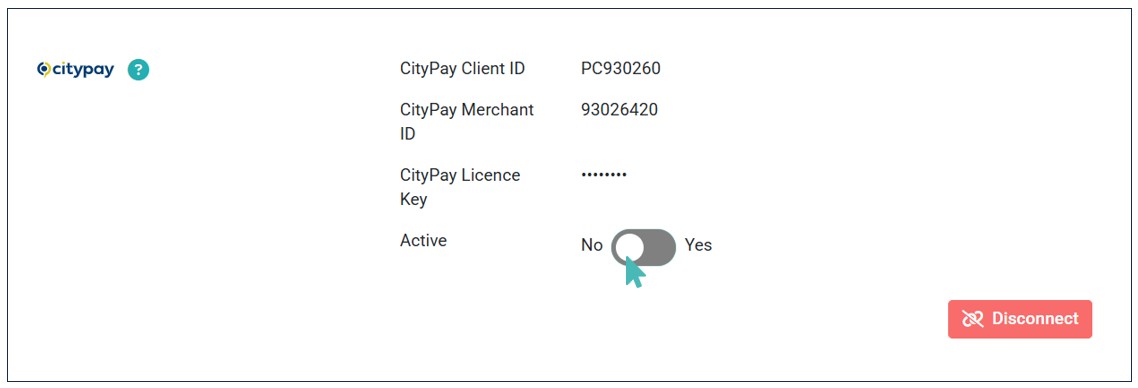
On the other hand, if you want to permanently disconnect Citypay and remove its integration details from your store, you can do so by clicking Disconnect on the Citypay integration section.

Whether you choose to deactivate or disconnect Citypay from your store, online payments will be paused. Therefore, if you wish to continue providing uninterrupted online payment services to your esteemed customers, you should consider connecting another payment provider.