A combo is a curated bundle of food and beverage items, typically a main dish, a side, and a drink, sold together at a fixed price. In most cases, the fixed price for a combo meal is discounted compared to purchasing each item separately. You can use combos to boost the average order value since customers will have to choose multiple items listed within the combo. To create a combos in your store, you must first setup the item groups – which will define the items listed in the combo. Here is a detailed guide into setting up combos and item groups in your store.
Note
Currently, GonnaOrder only supports fixed-price combos. Therefore, we recommend using combos for items within the same price range since individual item prices are ignored when ordering a combo.
On This Page
- Create Item Groups
- Add Catalog Items to Item Groups
- Create Combo Items
- Link Combos to Item Groups
- Order Combo Items
- Submit Orders with Combos to Sunsoft and Other POS
- Unlink Item Groups from Combos
- Remove Items from Item Groups
Create Item Groups
As initially stated, before creating combos in your store, you must configure the item groups. Here are the steps to follow to create item groups:
- Login to your store and click Catalog on the side menu.
- Click the Item Groups tab and Add Item Group.
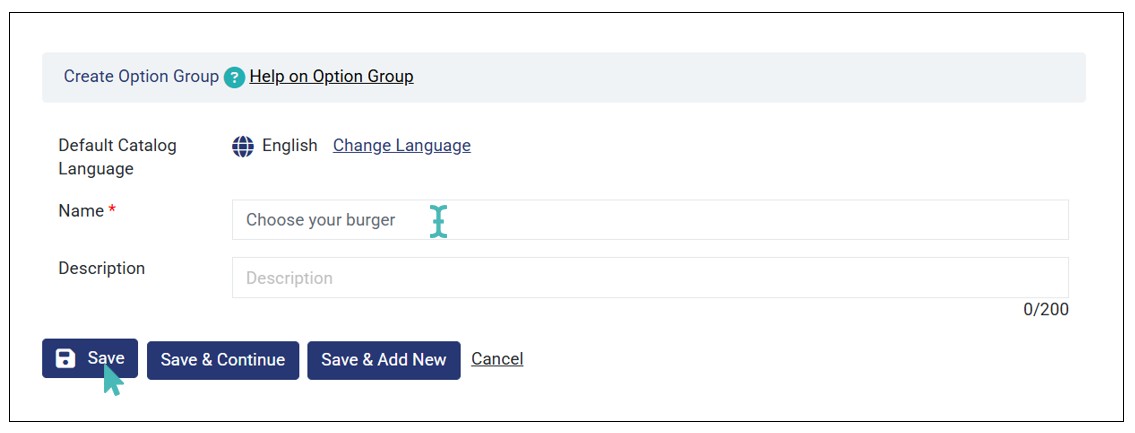
- Next, enter the item group details, that is the Name (mandatory) and Description (optional) and click Save. Repeat the process to create as many item groups as you would like.

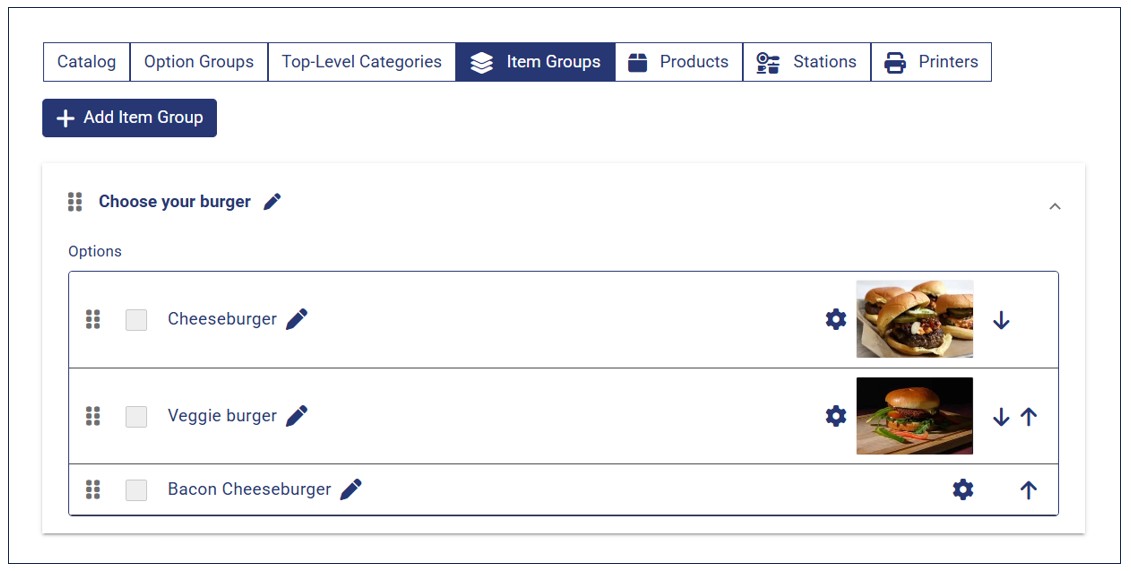
With the items groups ready, it’s time to add the items to the item group. In this case, add items related to the group. For instance, you can choose to include all burgers you offer on the Choose your burger item group.
Add Catalog Items to Item Groups
You can add existing catalog items to item groups to link them to the item group. Here are the steps to follow to add items to your item group:
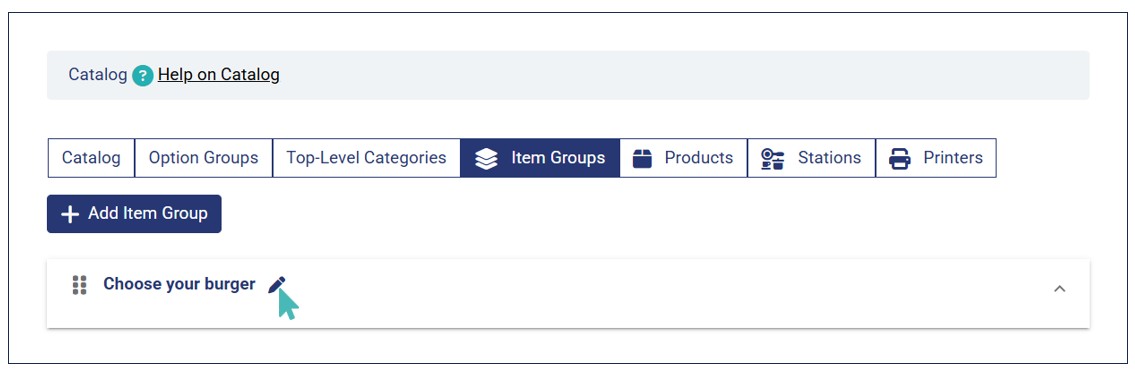
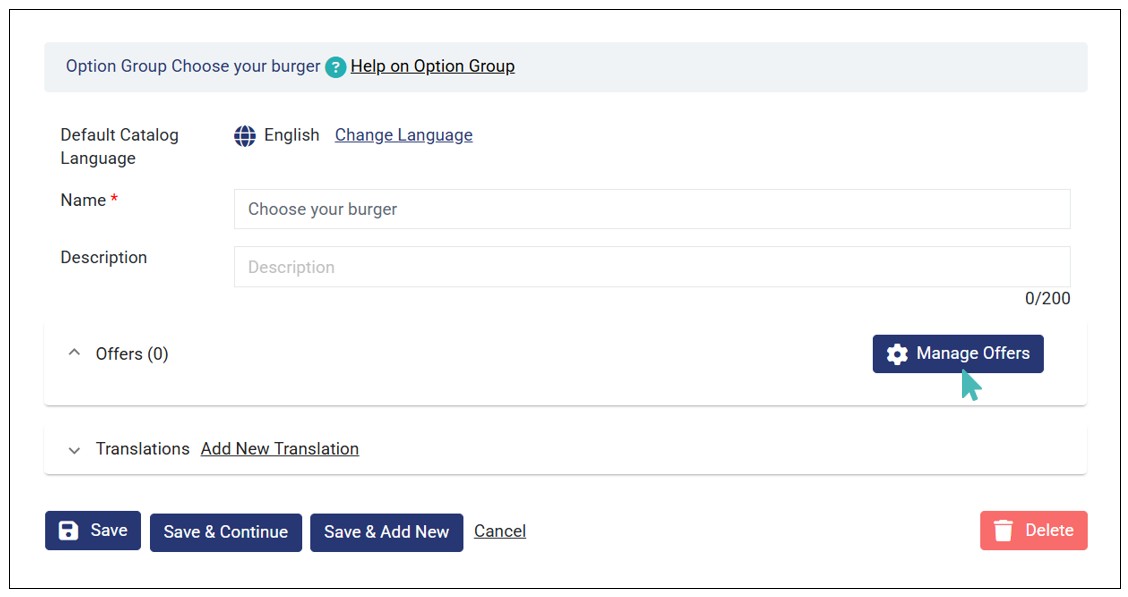
- Click the edit icon on the item group you just created.
- Click Manage Offers to open the catalog items popup.
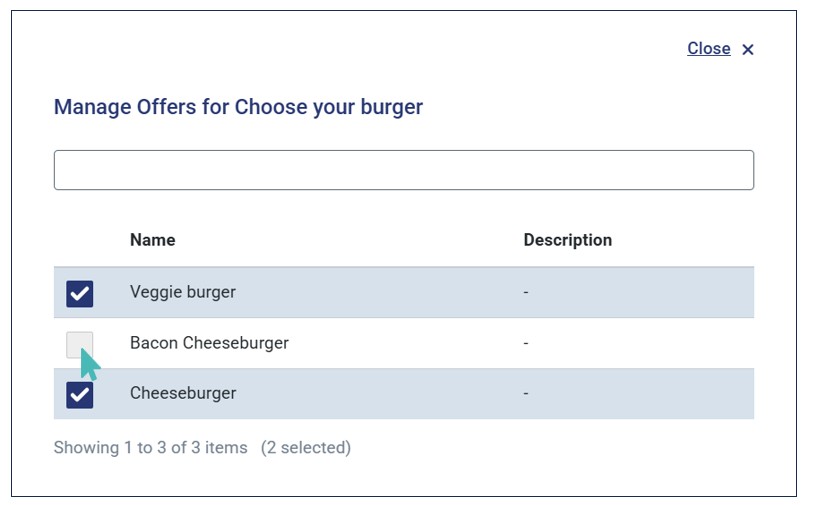
- Select the items you would like to include in the item group. You can use the search function to filter out items in your catalog.
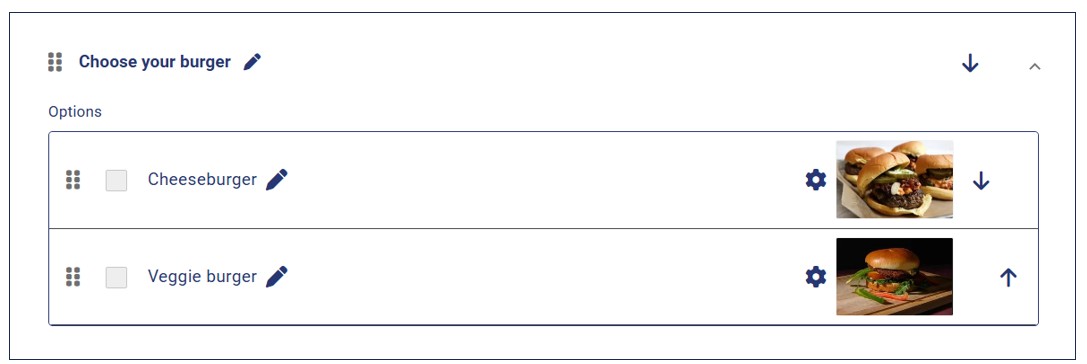
- Lastly, click Save and repeat this process for all your item groups. All the items selected will appear as options under the item group.

Create Combo Items
Once you have the item groups and their associated items, you can configure the combo items in your store. For this case, we will use Burger Combo as a combo item which will include items groups Choose your burger, Choose your fries, and Choose a drink. The aim is to allow the customer to choose their desired burger, fries, and drink in one combo.
Here are the steps to follow to create your combo:
- Navigate to Catalog on the side menu.
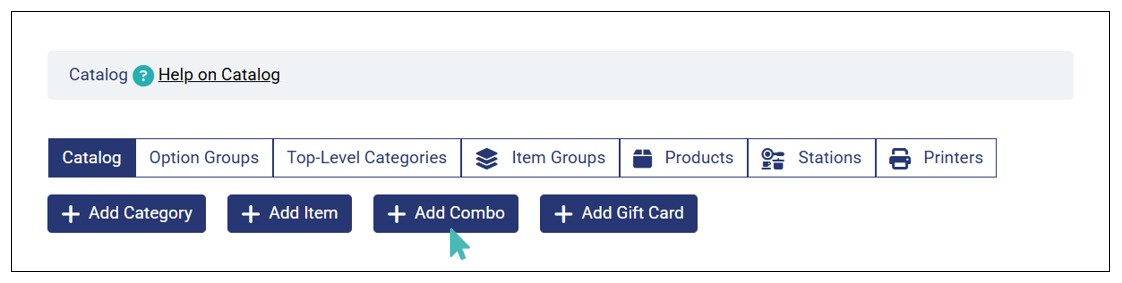
- Next, click Add Combo on the Catalog tab.
- Enter your combo details on the respective fields and Save. Here, you can enter the following details about the combo:
- Name.
- Short description
- Long description
- Category. Select a category under which the combo item will be listed.
- Price. The price you set here will override the price of individual items in the combo.
- Price description
- Discount. You can offer a percentage or monetary discount on the combo to entice customers.
- Visible. Here, you can set whether to show or hide the combo item on the customer menu.
- Item type. You can choose to set the combo as orderable, reservable or inactive.
- Item image
- VAT percentage

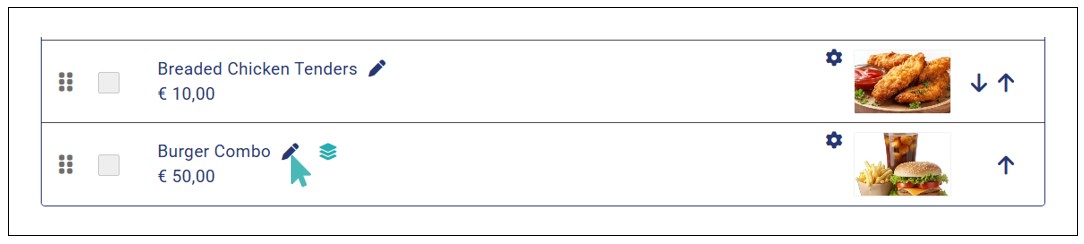
Upon saving the combo item, it will appear with a unique combo icon on the admin catalog to distinguish it from the usual catalog items.

Note
- The price of the combo overrides the prices of individual items linked to the combo. Therefore, the price of the combo is fixed and can only change if there are options with an additional price.
- Combos are based on existing catalog items.
Link Combos to Item Groups
With the combo item ready, you can now link item groups on the combo to allow customers to choose their desired combination of items within the combo. To do so, follow these steps:
- Click the edit icon on the combo item to open its details.
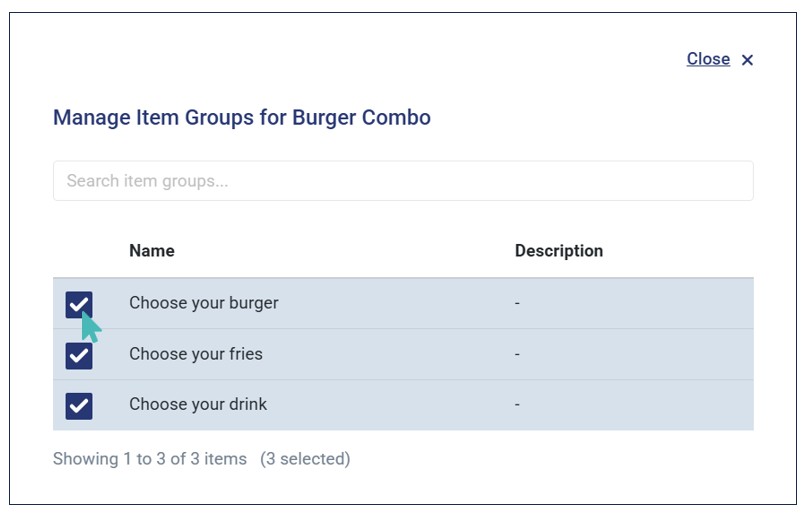
- Find the Item Groups field and click Manage Item Groups.
- Select the item groups you would like to link to the combo. You can use the search function to quickly find the desired item groups if you have many item groups.
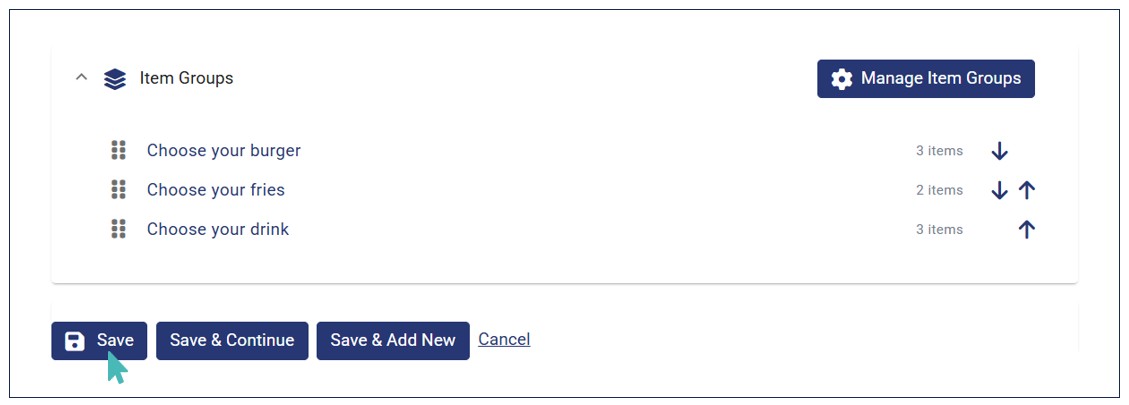
- Review the item groups linked to the combo and click Save to update the combo item.

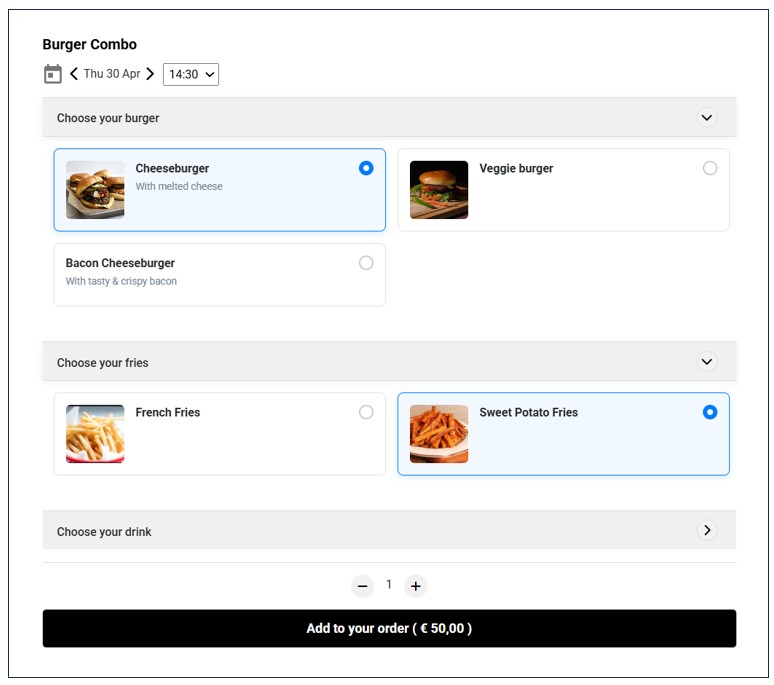
With everything set, the combo item is ready for ordering. Here is how it will look like on the customer menu.
Order Combo Items
Customers can quickly order combo items listed in your store. The ordering flow resembles the one involved when an item has options. Here’s how the ordering process looks like:
- The customer opens the homepage to explore your menu.
- Upon opening a combo item, they can view and select desired items per item group in the combo as shown in the previous section. Note that the customer must select only one item per group.
- Once done, they add the item to cart. Here, they can view the combo name and the items selected in the combo. Also they can add other order items to the cart before submitting the order.
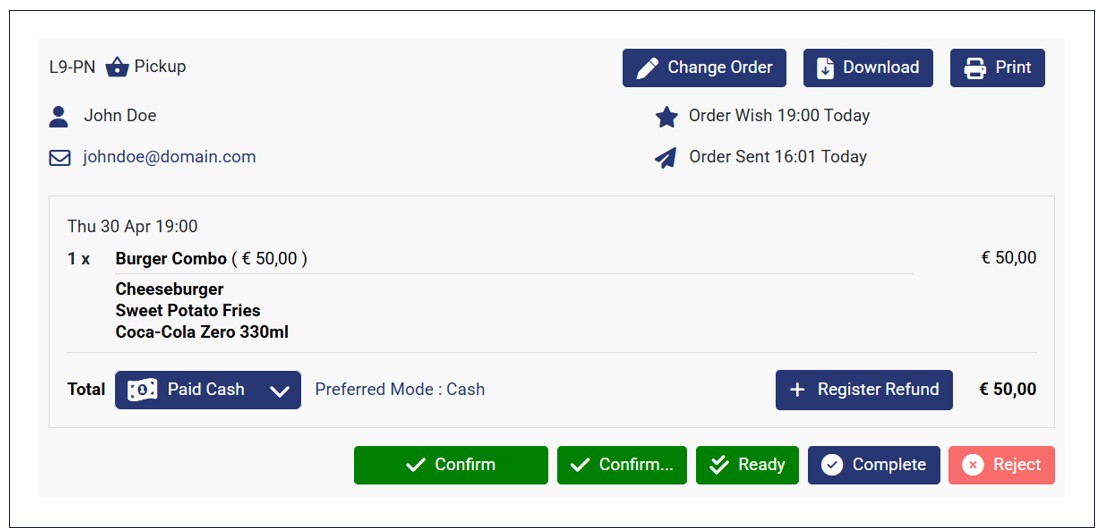
- Once the customer submits the order, you can view it on the Orders dashboard.

Note
- Customers can only add one item per item group when ordering a combo.
- A customer can place an order with a combo(s) and other usual (individual) items.
Submit Orders with Combos to Sunsoft and Other POS
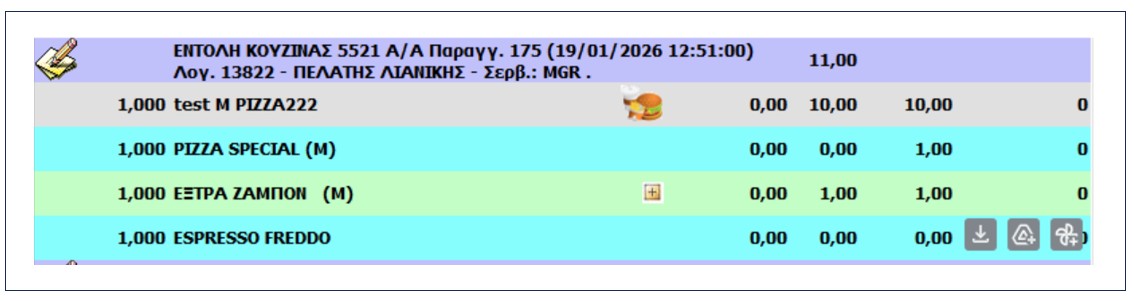
If you have linked your store with a POS (e.g., Sunsoft), orders with combos are sent to your POS. For the combo, the following details will be sent to Sunsoft:
- Combo header – that is, the name of the combo.
- Selected combo items. These are the main items selected by the customer in the combo.
- Add-ons. These are the child items under a selected main item (e.g., options), and are not part of the combo grouping.
Here’s an example of an order with combo on Sunsoft.
Unlink Item Groups from Combos
You can remove an item group from a combo if you no longer wish to offer the items under the combo. This ensures you have full control of your combos and their related items. To remove an item group from a combo, simply open the combo details page and click Manage Item Groups.
Next, uncheck the checkbox corresponding to the item group you would like to unlink from the combo and Save the changes.

Remove Items from Item Groups
You may want to remove some items from an item groups due various reasons. For instance, you may no longer offer that item or you may have updated the prices, making it unsuitable for a particular item group. Here are the steps to follow to remove an item from an item group.
- Go to Catalog on the side menu and click the Item Groups tab.
- Find the Item Group you want to remove items from and click the edit icon
- Click Manage Offers on the edit item group page and uncheck the item(s) you would like to remove from the group.
- Lastly, Save the changes, and the items will be successfully removed from the item group.